FAQ
- Facilitation of over 1,000,000 successful transactions between buyers and sellers;
- Establishing partnerships with trusted and long-standing sellers to expand the variety of skins available on the site;
- Maintaining a high level of security to protect our users' personal data and financial transactions.
About us
We are a Brazilian skin marketplace that allows you to buy and sell Counter-Strike 2 digital items using real money.
Our proposal
We started DashSkins with the vision of creating a platform that would provide our community an easy, fast, and secure way to trade skins using real money.
Since the project's inception, we have dedicated ourselves daily to building a safe and transparent environment where everyone can easily buy and sell their skins.
Our main goal is to simplify the process of trading Counter-Strike 2 items, eliminating all the common concerns associated with this type of digital transaction, making it accessible to both experienced sellers and beginners.
Is the site only for the Brazilian public?
We currently focus on serving customers in Brazil, using the Brazilian Real. However, we are exploring ways and possibilities to expand the platform to other countries.
As one option for purchasing items, users who don't have a Brazilian bank account can use the Gift Card method to add funds to their accounts, with the partner site Kinguin, which accepts foreign currencies. The option to deposit via cryptocurrency is also available.
Additionally, foreign users can sell items on the platform, using their balance to purchase new skins. Withdrawals can only be made using cryptocurrencies.
Our team
Behind DashSkins, we are a team of highly qualified and dedicated professionals, passionate about games and technology.
We have extensive experience in software development, online security, and customer support.
Together, we work to ensure that DashSkins is the number one choice for all players looking for a reliable platform to conduct their skin trading.
Our achievements
Since our inception, we have achieved several significant milestones that demonstrate our commitment to excellence and the quality of the service we provide. Some of our accomplishments include:
Join our community
If, like us, you're a passionate Counter-Strike 2 player looking for a simple, fast, and secure way to buy and/or sell your skins, DashSkins is the right choice!
Join the community of players already using DashSkins to trade skins. Stop by the Market, check out the vast collection of available skins, and experience the convenience and security that our platform offers.
If you have any questions or problems using the platform, please contact us through our social media or via our support email!
How do I add funds to my account?
The first step is to access or create your account on the platform using your Steam account:
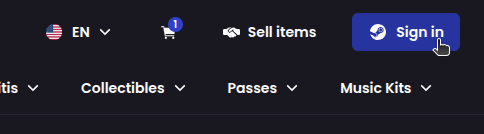
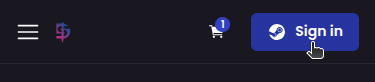
After creating or logging into your account, click on your current wallet balance and then click Deposit:
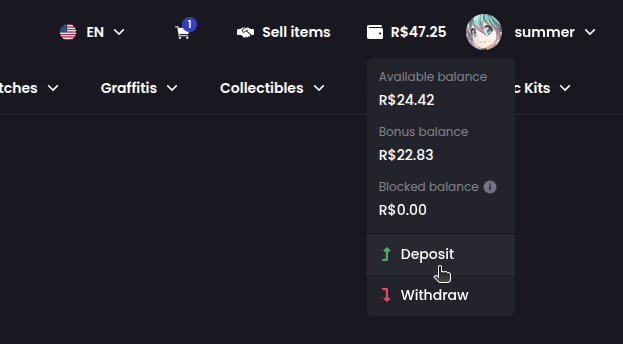
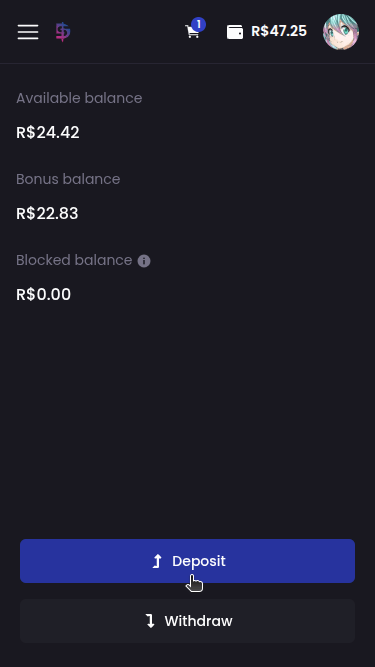
Select the payment method, fill in the required information, enter the amount to be deposited and click Deposit:
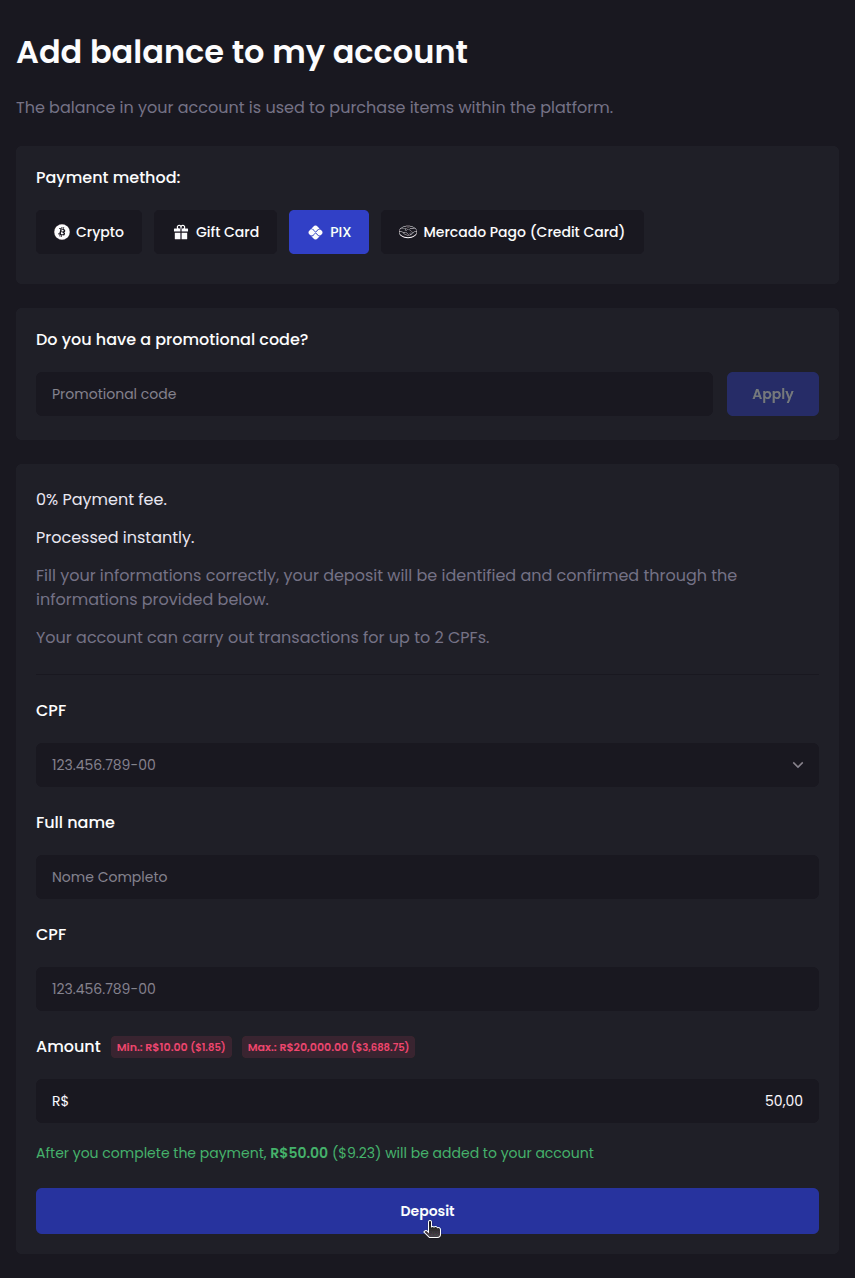
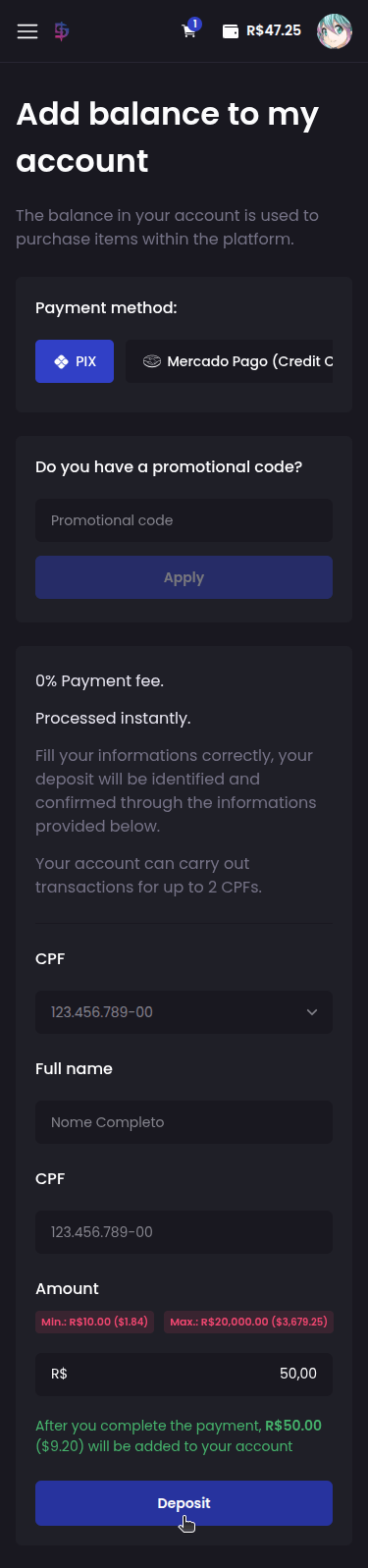
Follow the steps displayed to complete the payment:

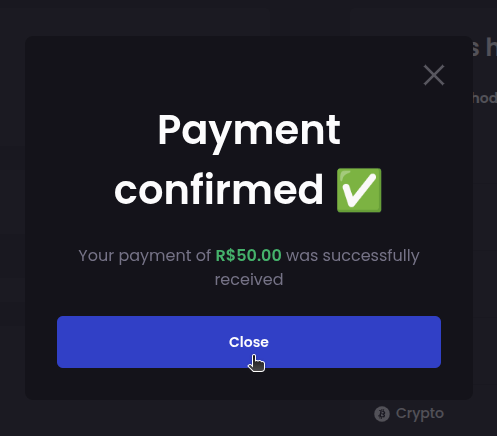
Once payment is confirmed, the balance will be credited to your account:
How do I withdraw my balance to my bank account?
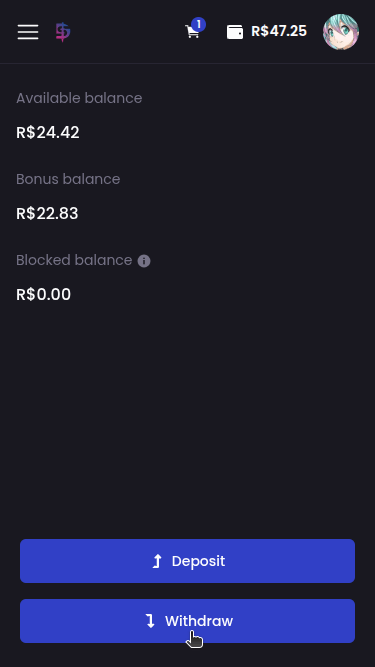
First click on your current wallet balance and then click on Withdraw:
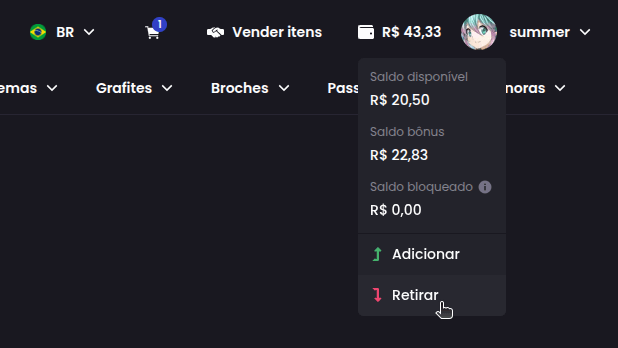
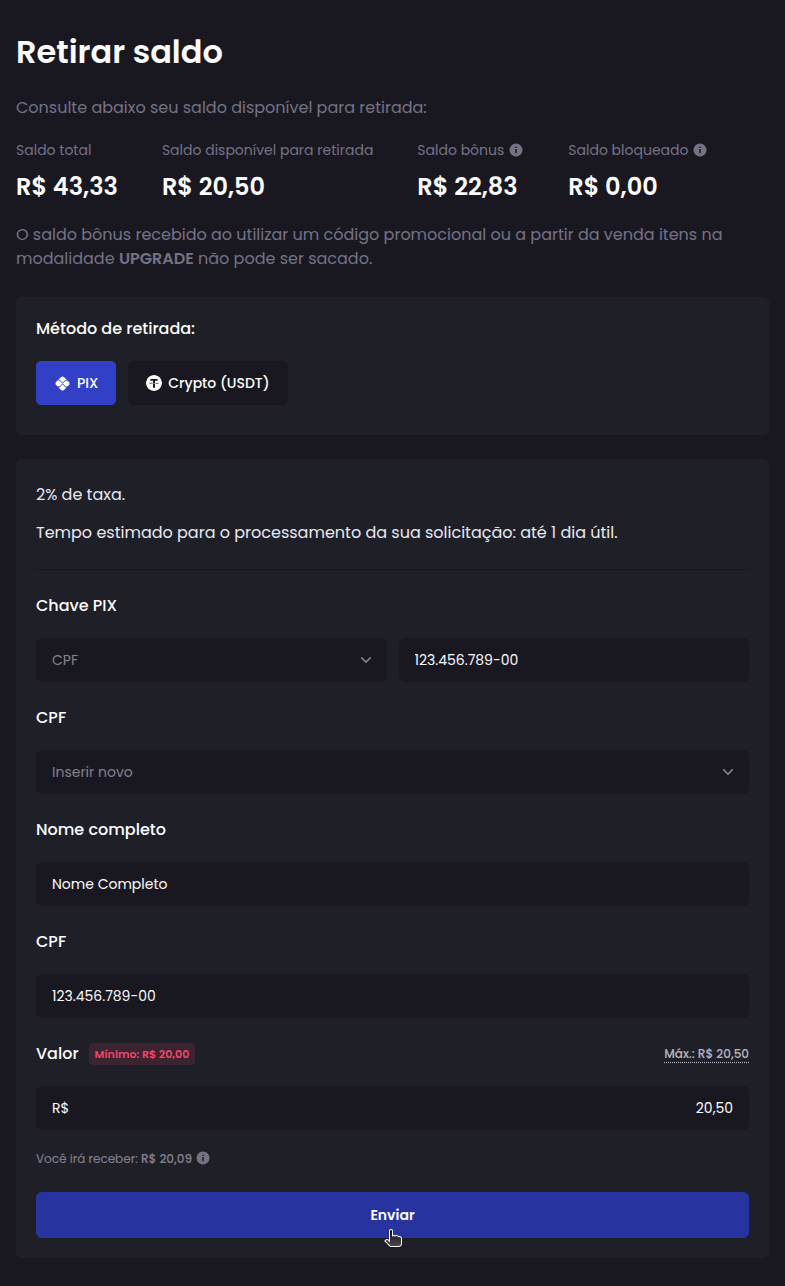
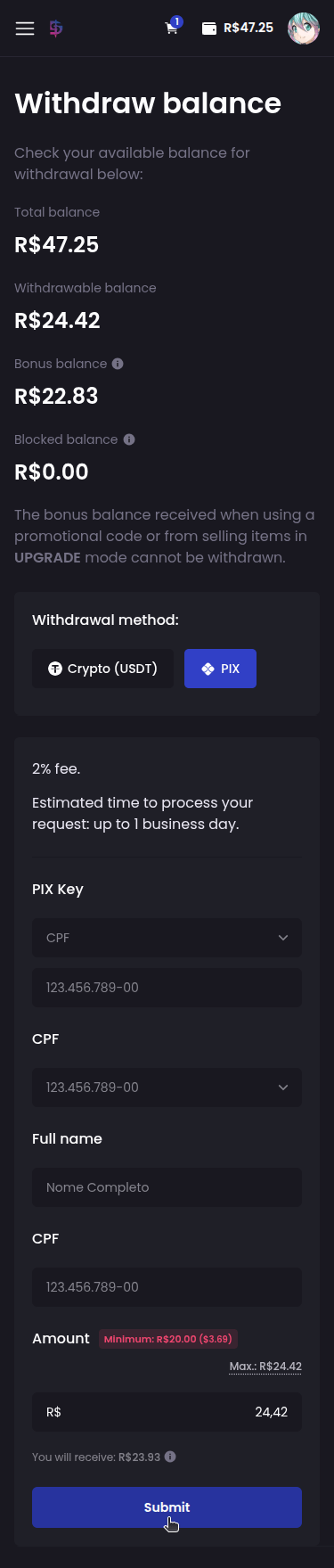
Select the withdrawal method, fill in the required information, enter the amount to be withdrawn and click Submit:
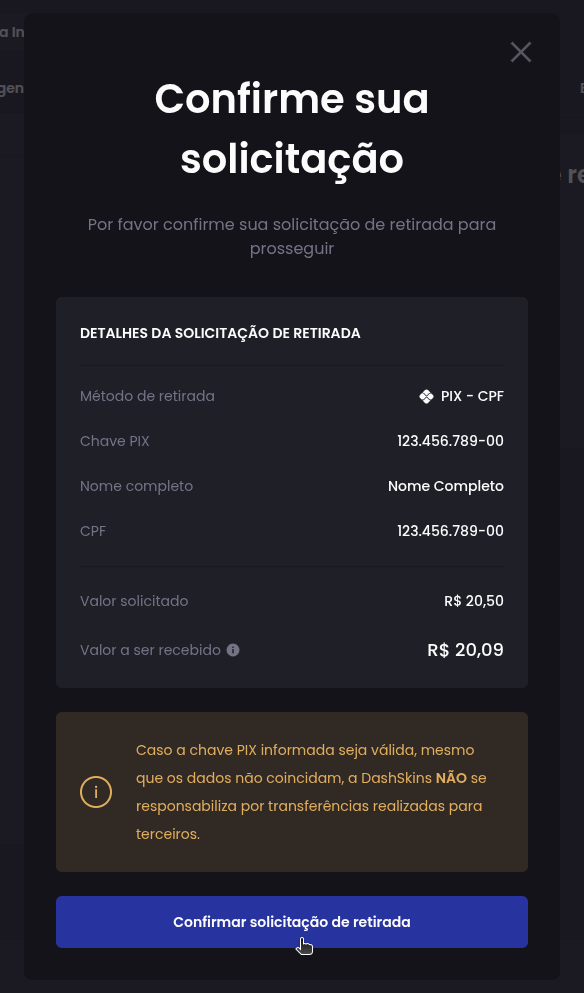
Confirm the withdrawal request:
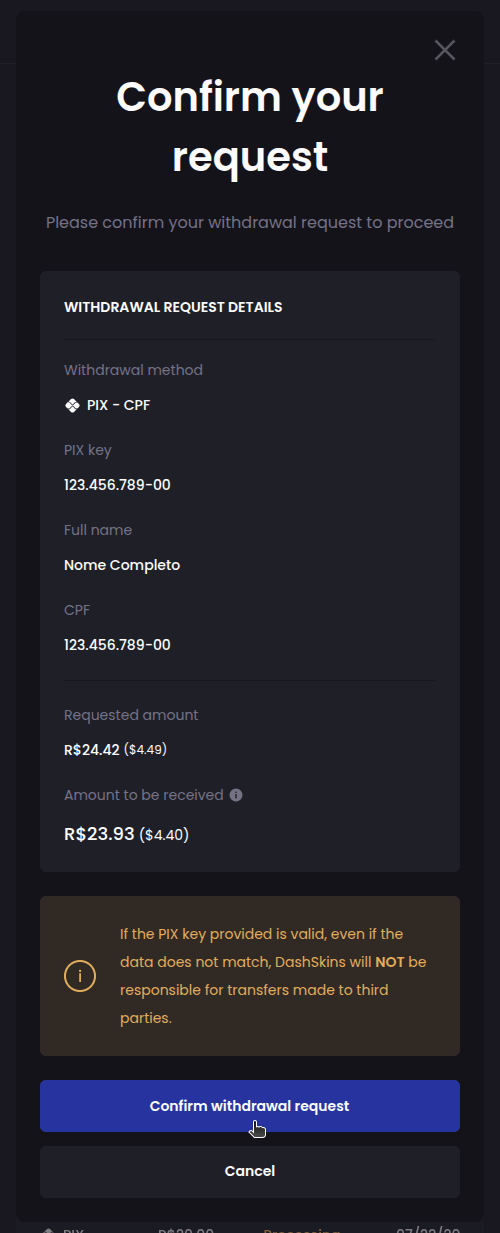
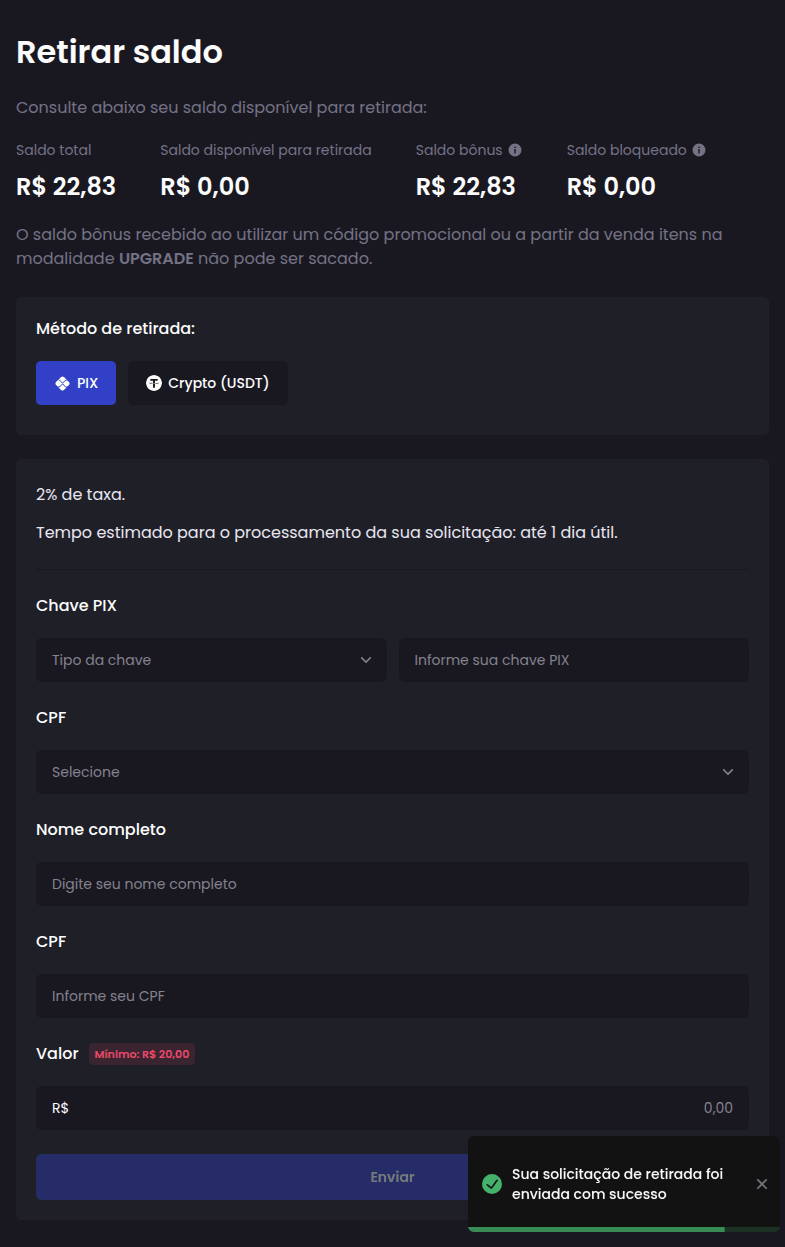
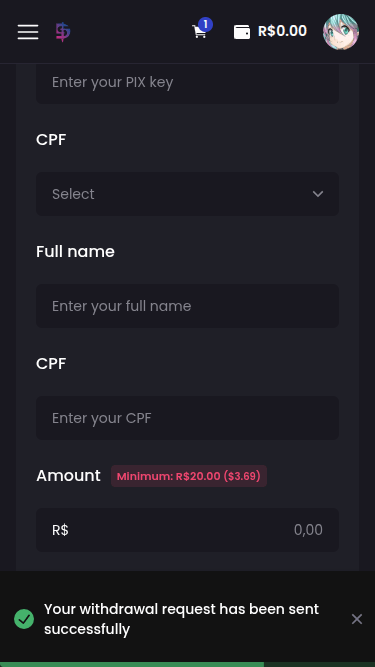
That's it! Now just wait, and within a maximum of 1 business day, the amount will be credited to your account:
How do I buy skins?
It's very simple! Find and add the skins you want to your shopping cart:
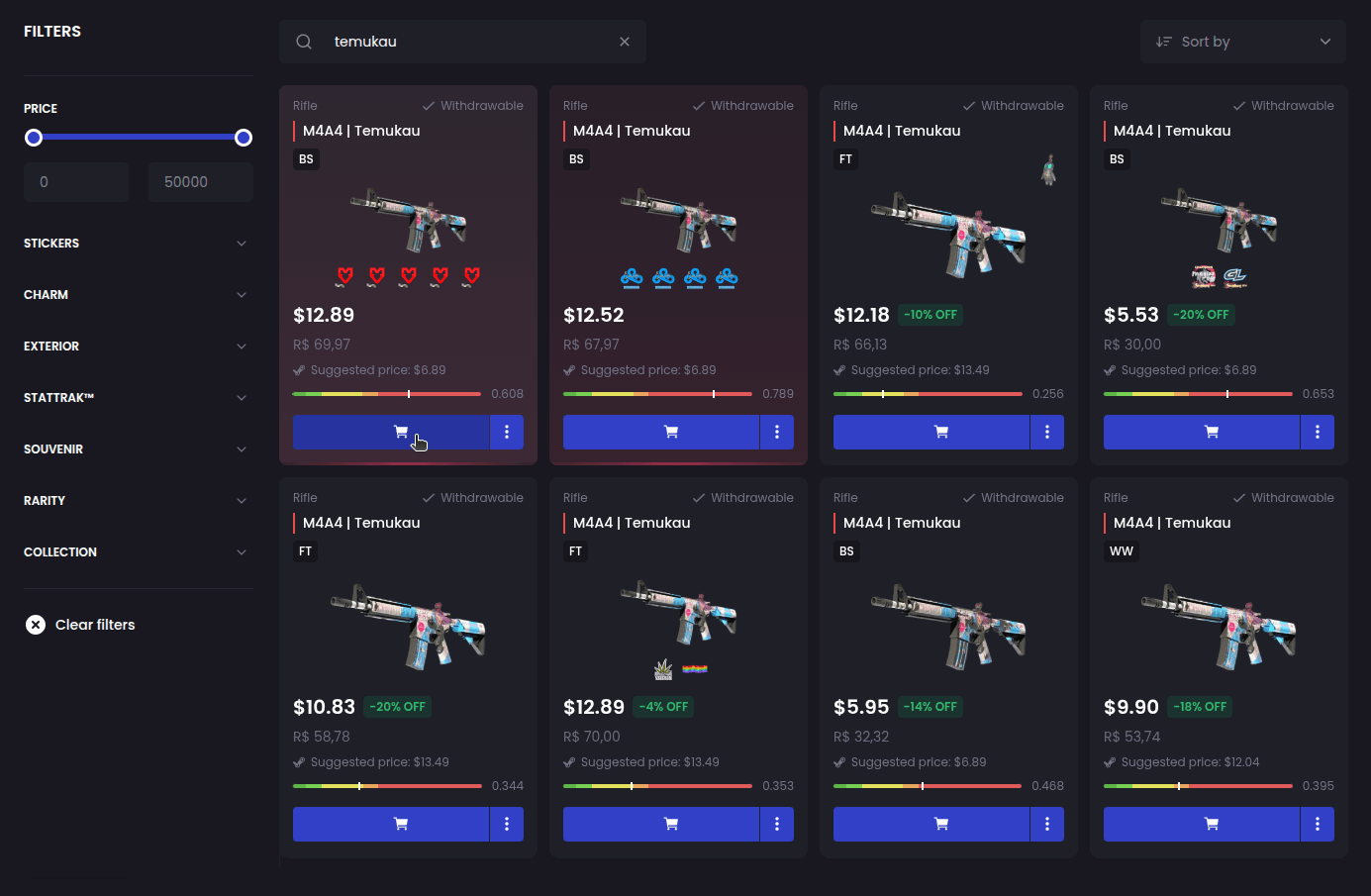
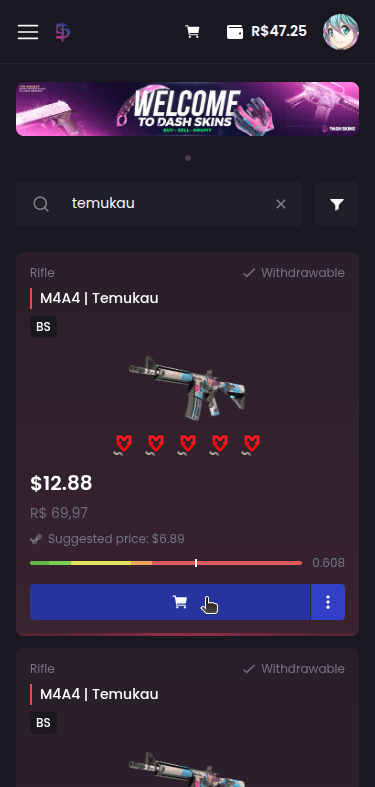
After adding all the skins click on your cart:
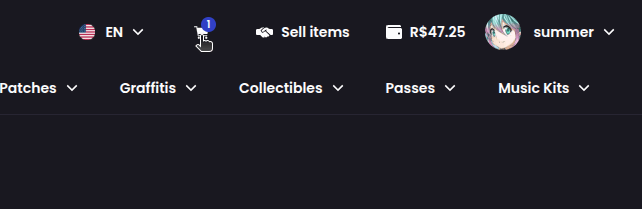
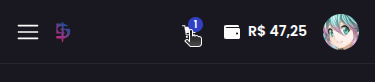
Review the items you added, then click Checkout:
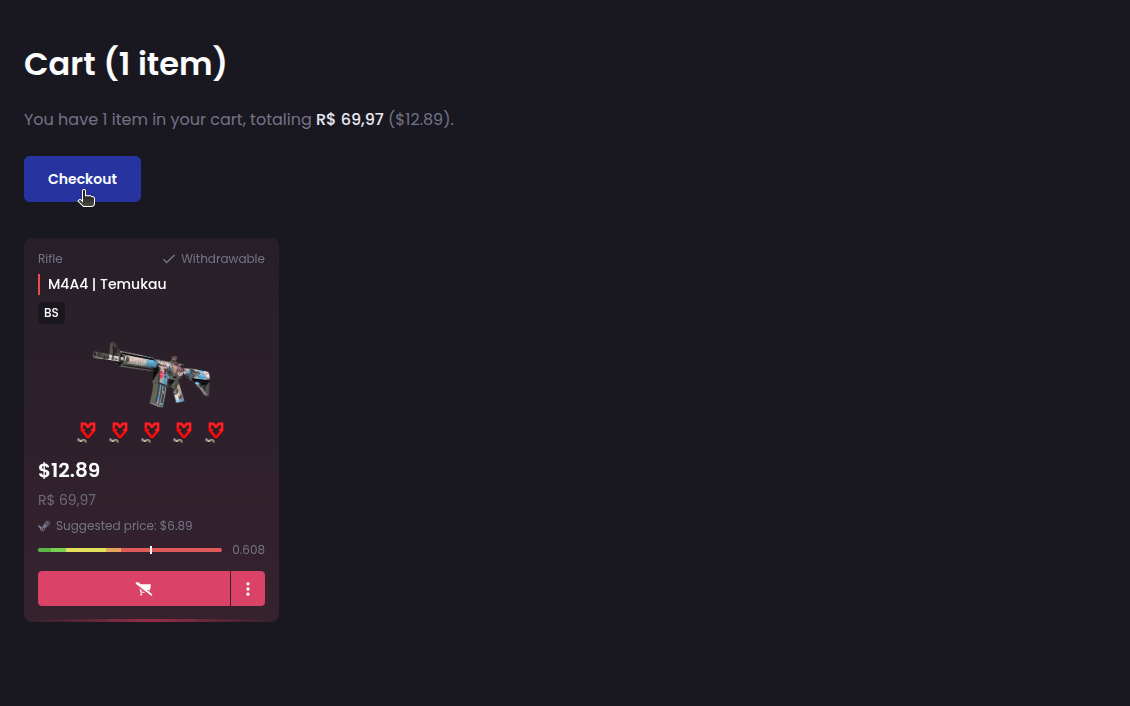
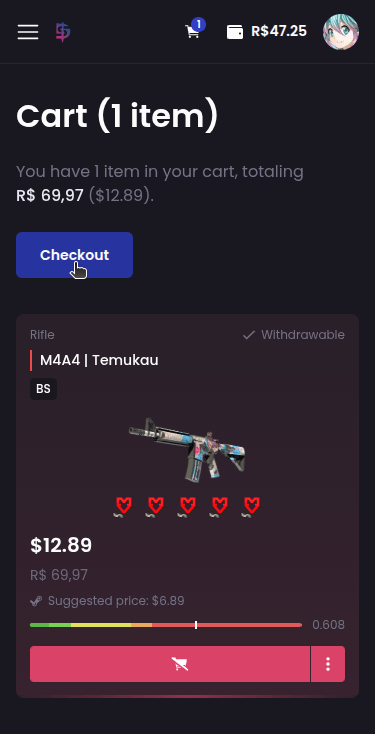
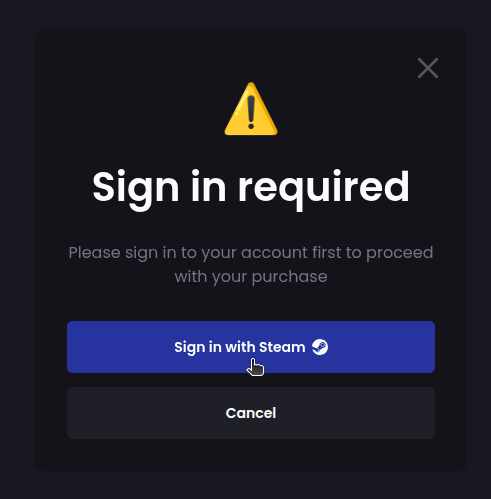
Detail: If you don't already have an account on the platform, or are not logged in, you will need to access or create your account first before continuing:
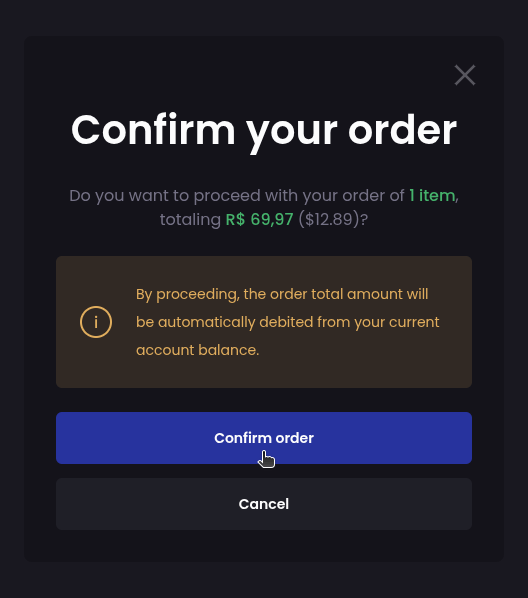
Finally, confirm your order:
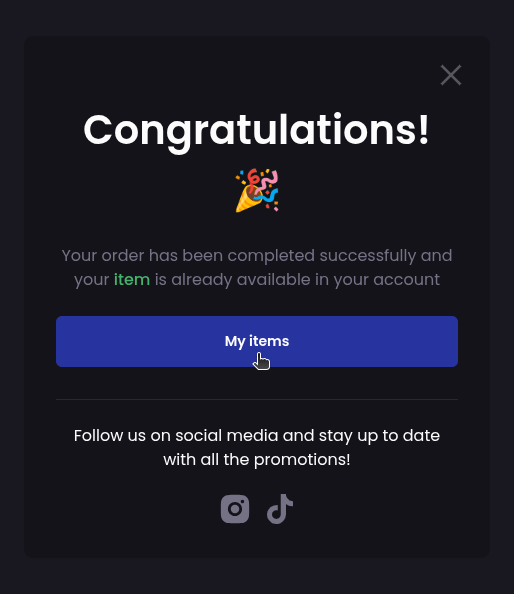
Done! Your order has been completed and your items are now available in your inventory on the platform:
What is suggested price?
To assist with listing and selling, we provide to our users an average price of the most recent sales made on Steam for each item: the suggested price.
We emphasize that the suggested price may change at any time, and sales of disproportionate amounts made on Steam may interfere, so it should not be used as the sole basis for purchases and sales.
How do I withdraw my skins to my Steam account?
First access your inventory on the platform:
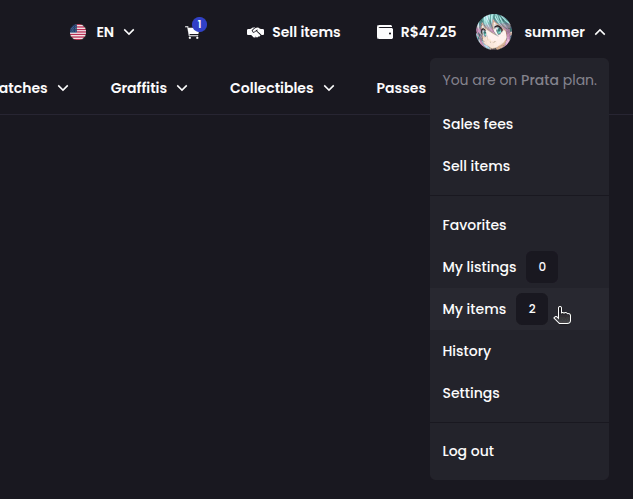
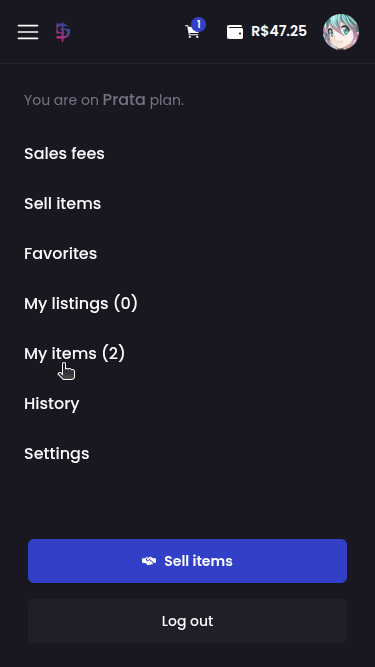
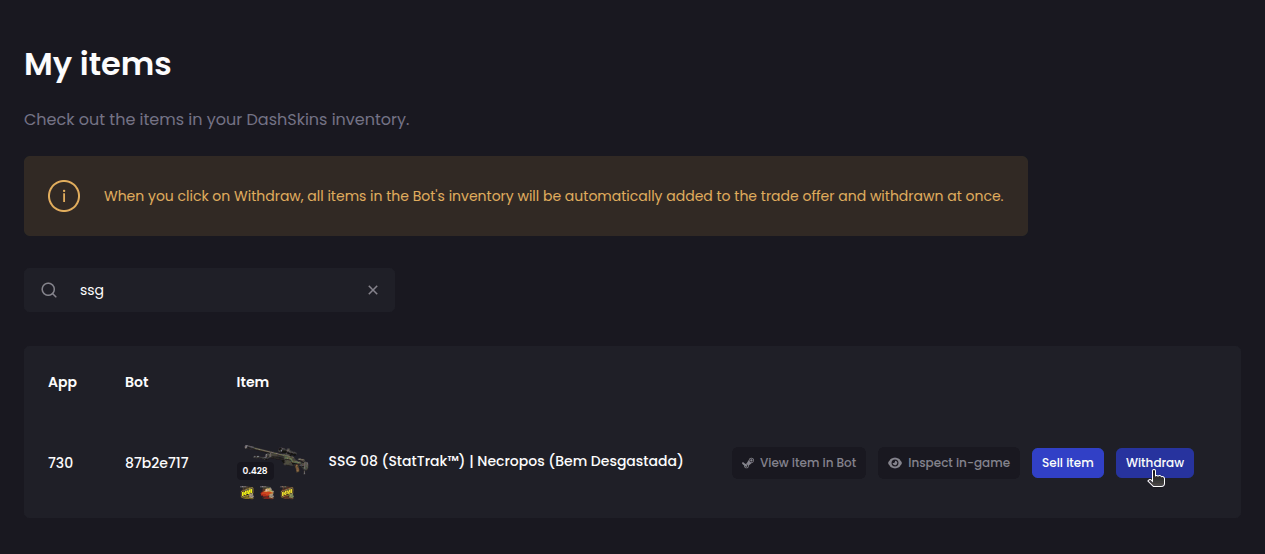
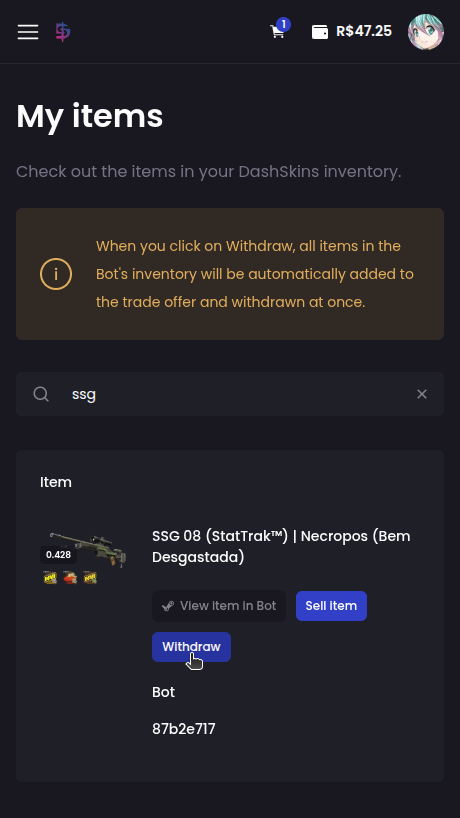
Find the item you want to withdraw to your Steam account and click Withdraw:
The next step is to accept the trade offer that our bot will send you with the item you selected:
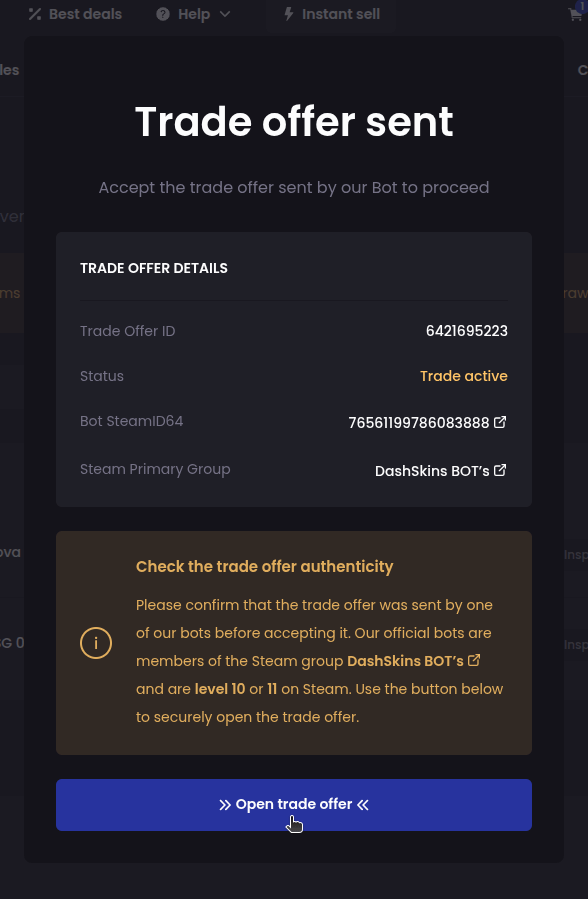
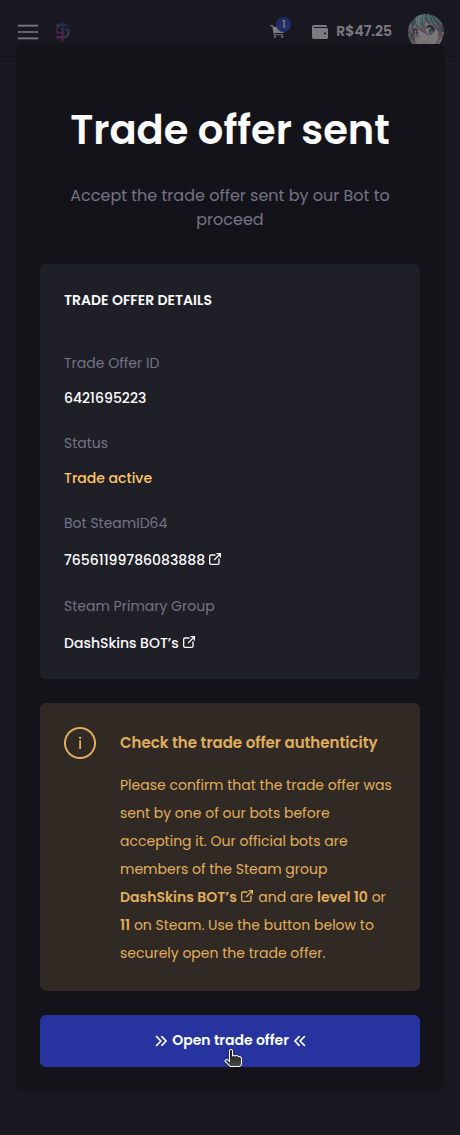
P.S.: If you have other items in your account that are in the same bot's inventory, they will be automatically added to the trade offer to be withdrawn as well.
Before accepting any trade offer, always confirm that it was actually sent by one of our official bots! All our bots are level 10 or 11 on Steam and are members of the DashSkins BOT’s group.
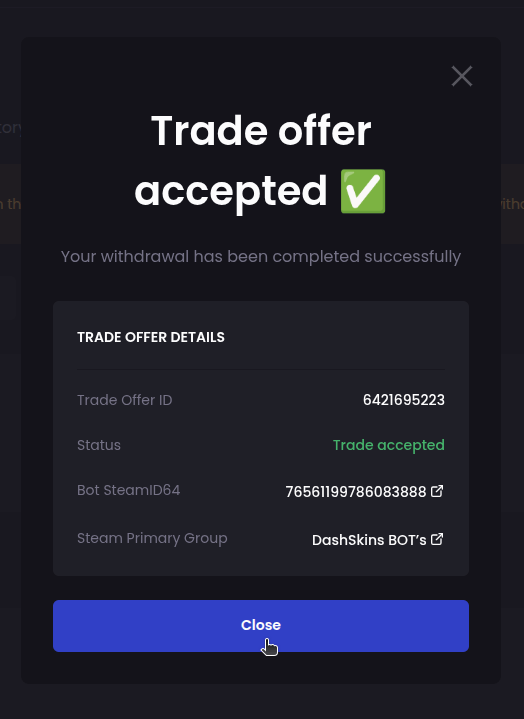
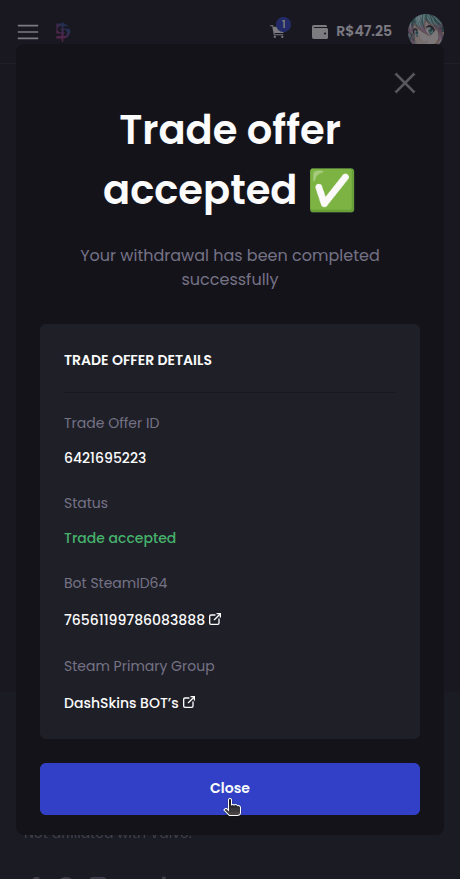
That's it! After accepting our bot's trade offer, your skins will be available in your Steam inventory:
How do I sell my skins?
The first step is to access or create your account on the platform using your Steam account:
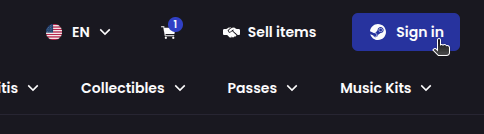
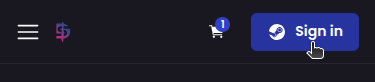
Next, you need to configure your email, phone number and your trade URL:
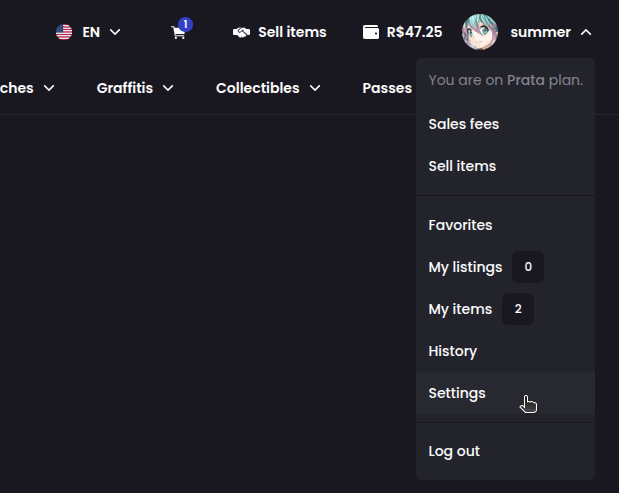
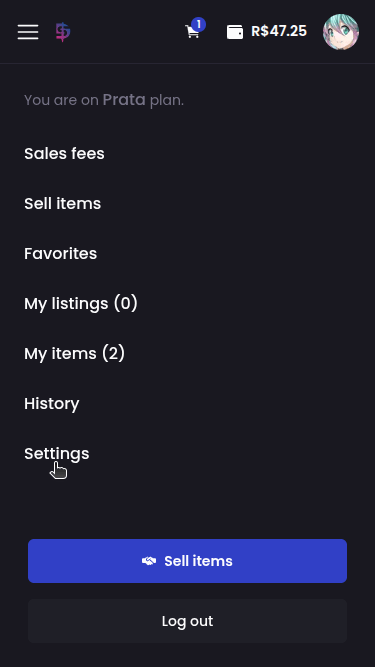
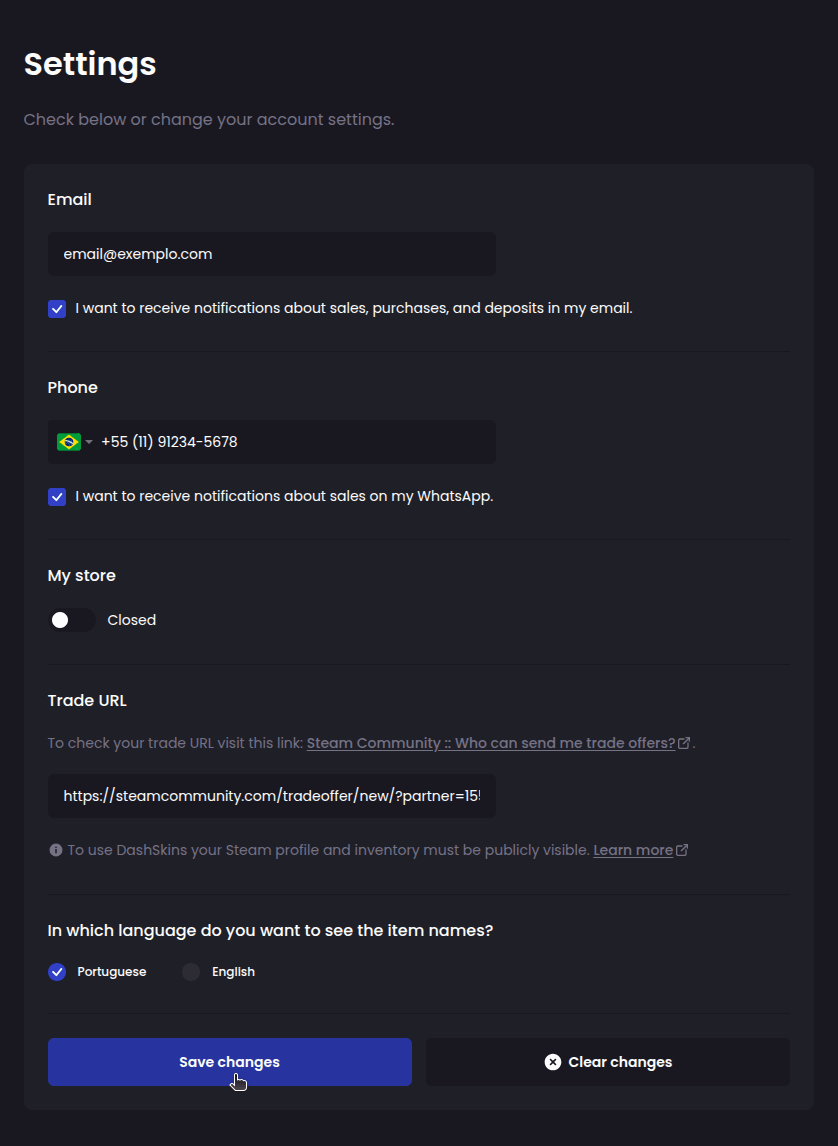
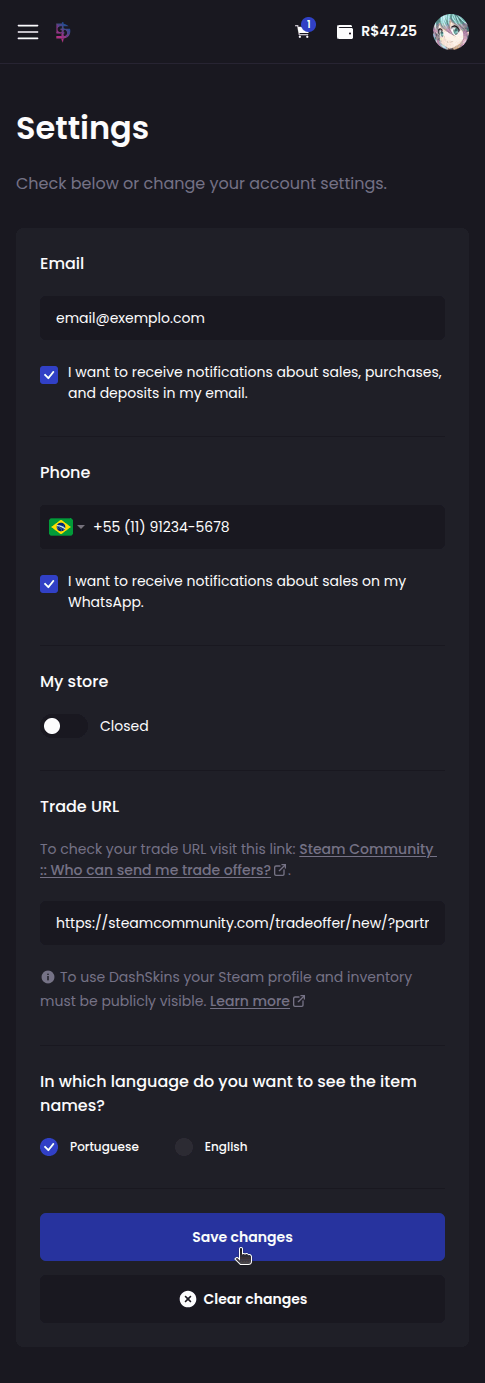
Once you've set up your account, click the Sell items button:
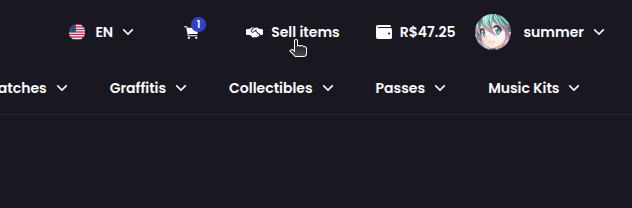
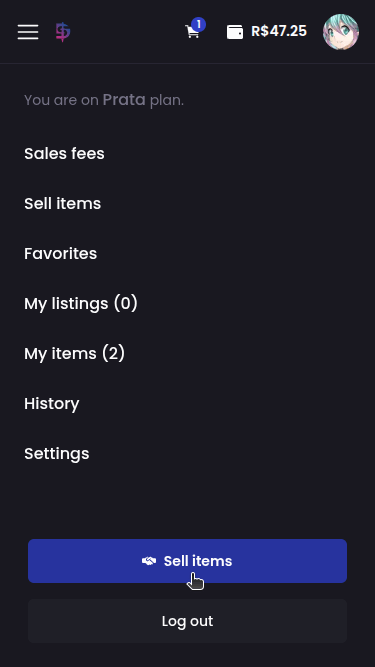
Choose the type of sale and select the items to be sold:
Upgrade: we buy your items, and the sales value is converted into bonus balance for your account. This bonus balance can be used to purchase items within the platform and CANNOT be withdrawn.
Instant sale: we buy your items, and the sales value is converted into balance for your account. You can use this balance to purchase items within the platform or withdraw it to your bank account or crypto wallet.
Listing: your items are listed on DashSkins so other users can purchase them. Once an item is sold, the sale value will be immediately available in your account and can be used to purchase skins within the platform or withdrawn to your bank account or crypto wallet.
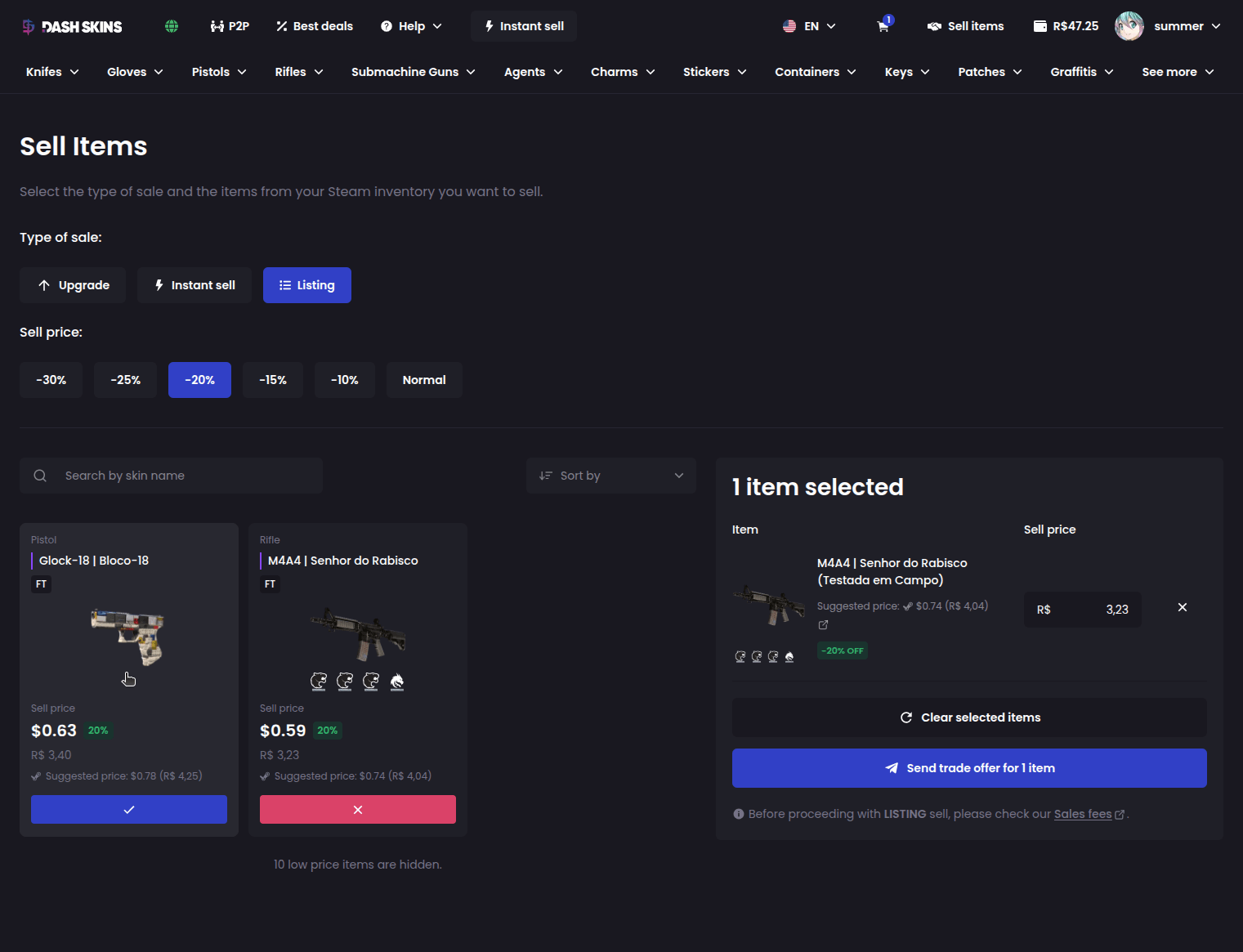
After choosing the type of sale and selecting your items, click the Send trade offer button:
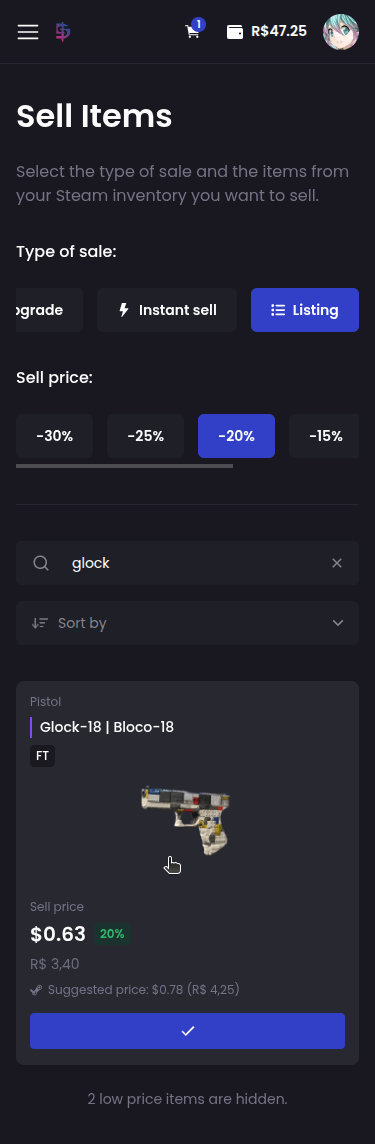
After choosing the type of sale and selecting your items, click the See selected items button:
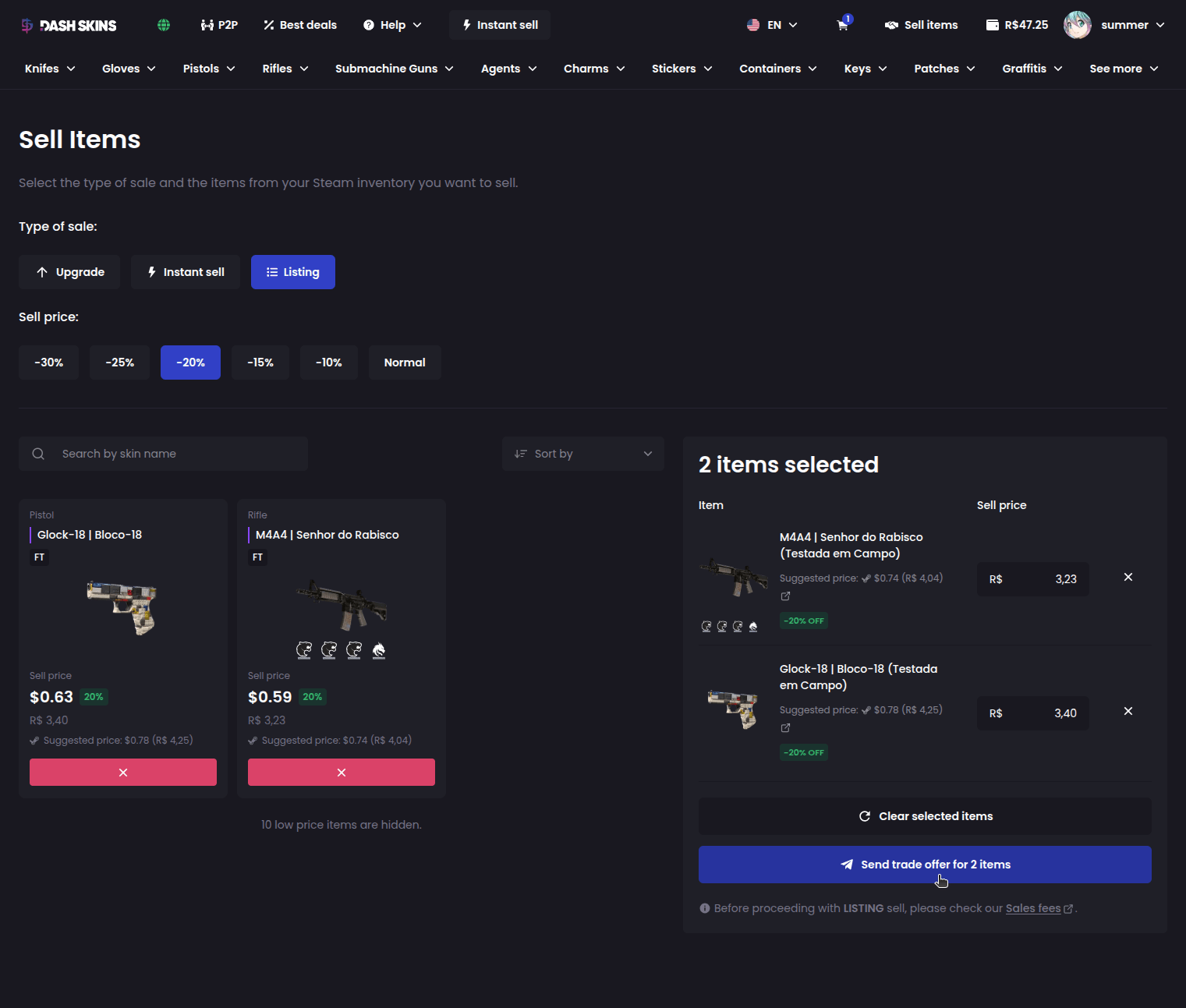
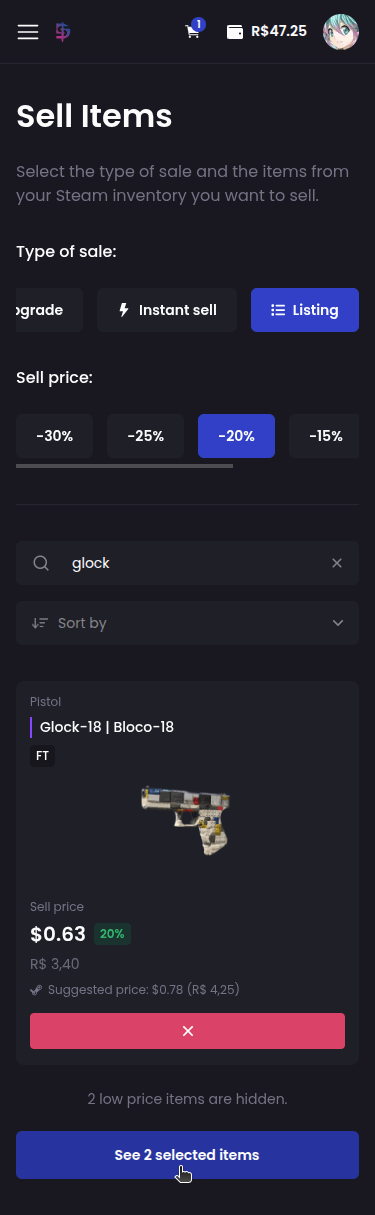
Review the selected items, then click Send trade offer:
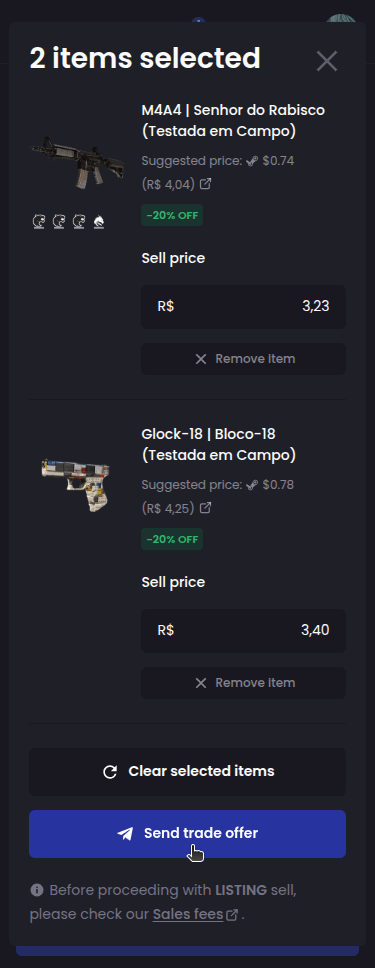
The next step is to accept the trade offer that one of our bots will send you requesting the items you selected to sell:
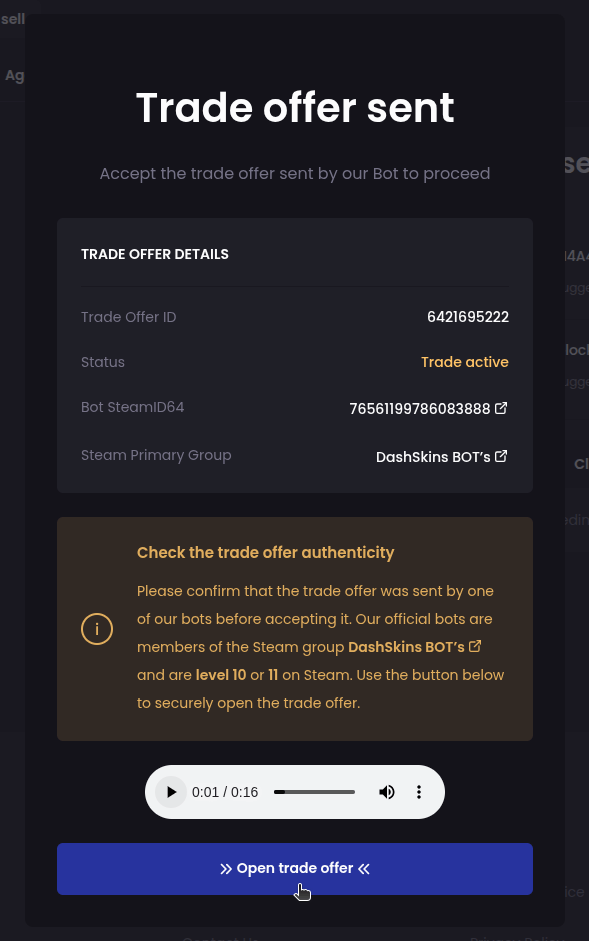
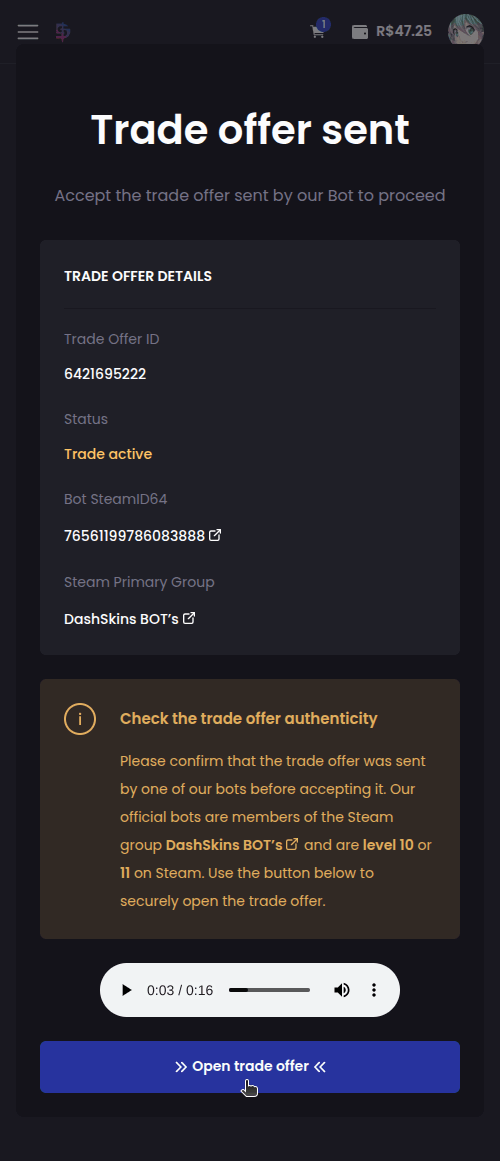
Before accepting any trade offer, always confirm that it was actually sent by one of our official bots! All our bots are level 10 or 11 on Steam and are members of the DashSkins BOT’s group.
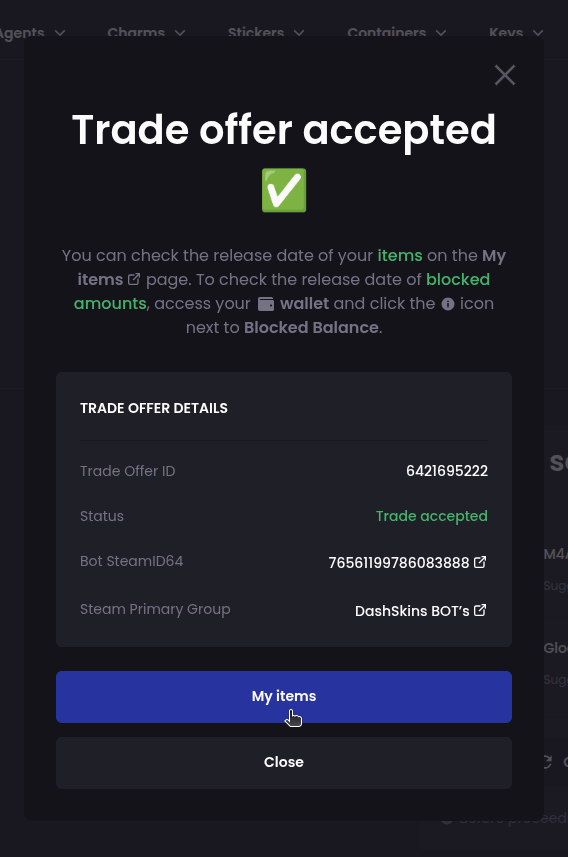
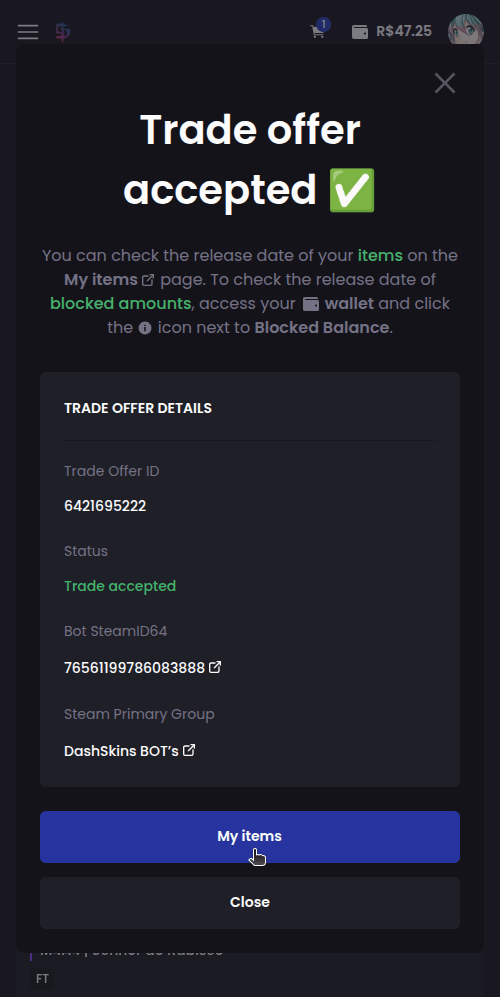
After accepting our bot's trade offer, your skins will be blocked for 8 days until the end of the Steam Trade Protection period.
In the case of an instant sale or upgrade sale, when there is no trade reversal on Steam, after 8 days the amount will be automatically transferred to your Available Balance or Bonus Balance, depending on the type of sale.
In the case of a normal listing, when there is no trade reversal on Steam, after 8 days your items will be automatically listed on the platform and will be available for other users to purchase.
How much does DashSkins charge as sales fee?
Our fees are regressive, ranging from 10% to 5%. The more you sell, the lower the fee!
For the first sale on the platform, the fee is a fixed 10%, regardless of the sale value.
Visit the “Sales fees” page to see the value applied to your account. The sales fee is only applied to the “Listing” mode.
Is it possible to change the selling price after listing my skins?
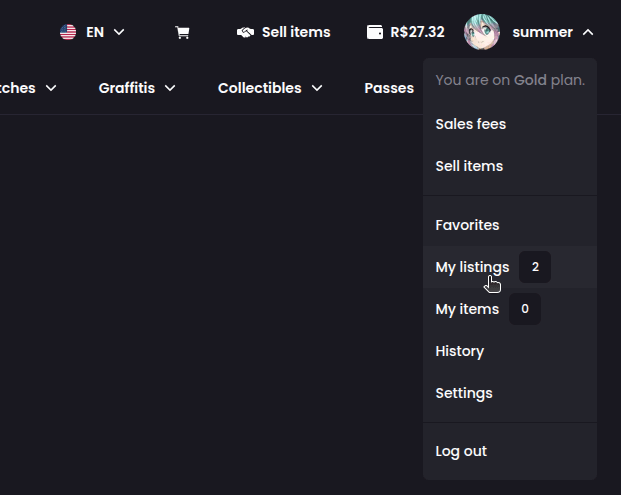
Yes! To change the selling price of a listed skin, simply access the My listings option:
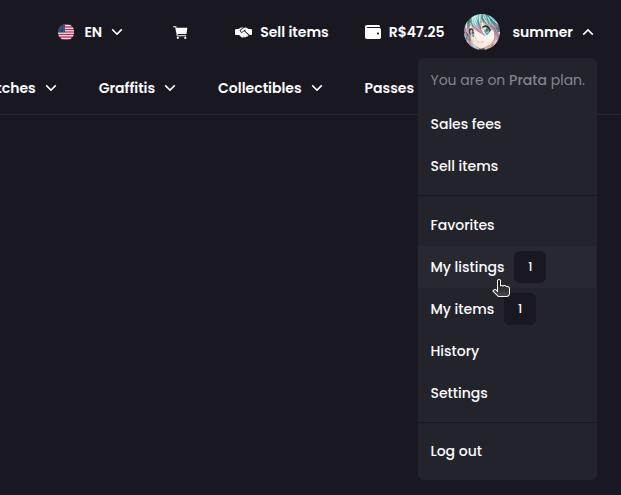
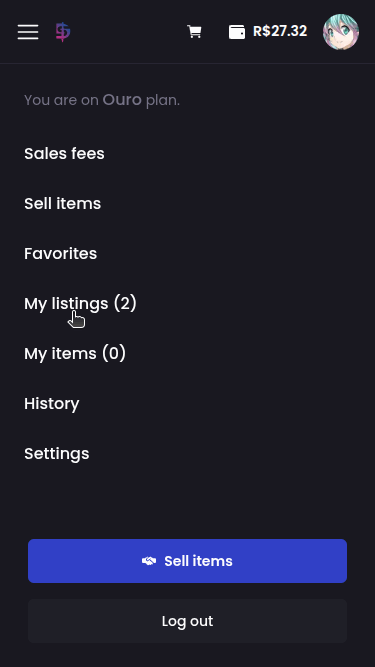
Find the skin you want to change the price of, enter the updated price and click the button :
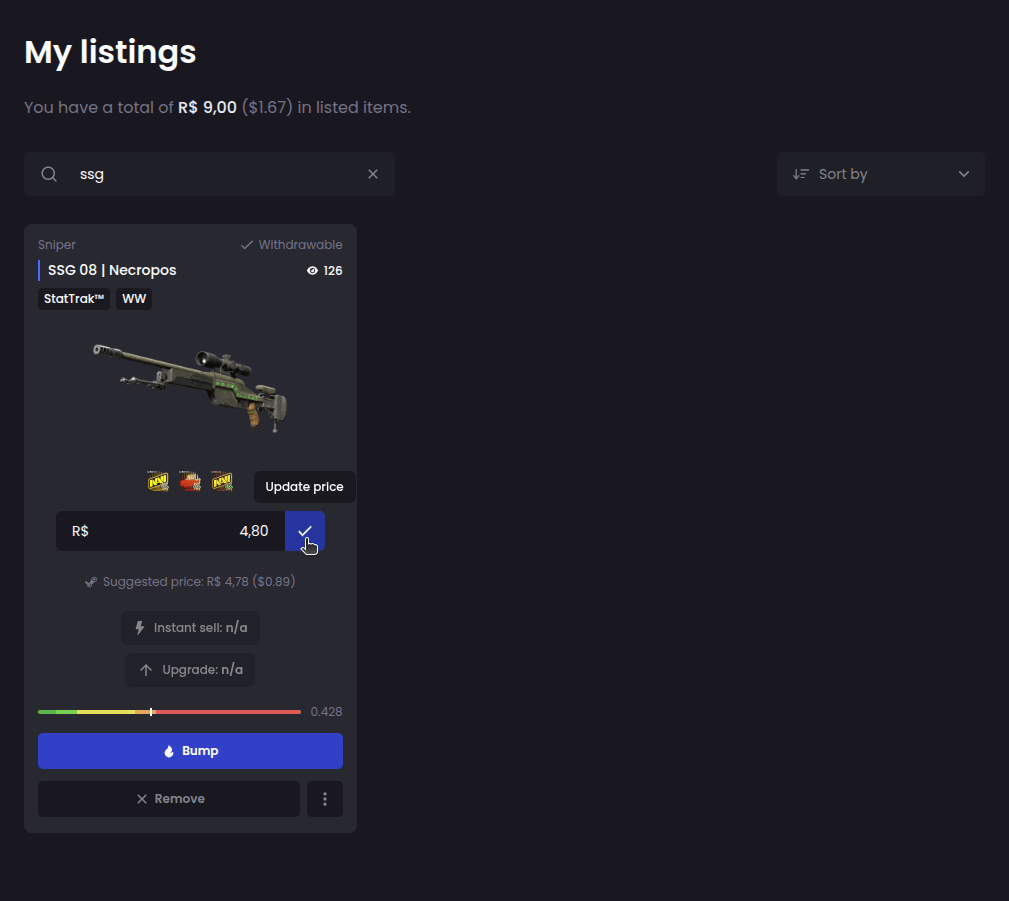
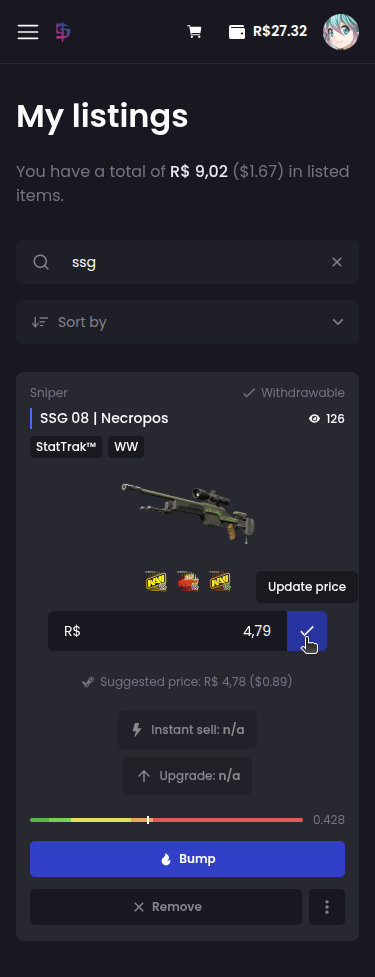
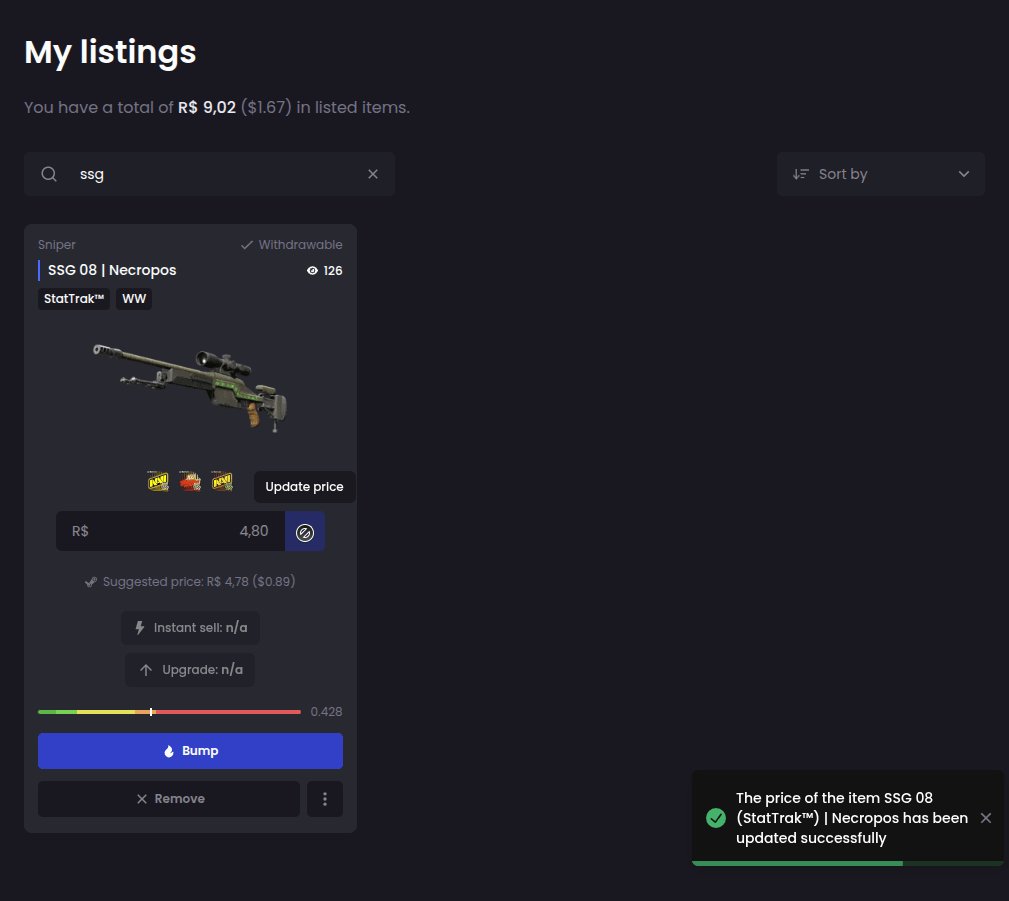
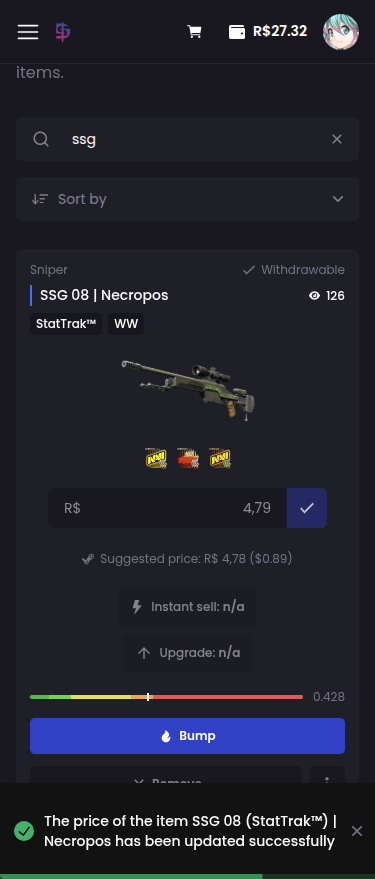
Done! Your skin's selling price has been successfully changed:
Can I cancel my listings and get my skins back?
Yes, you can. To cancel a listing, access the My listings option:
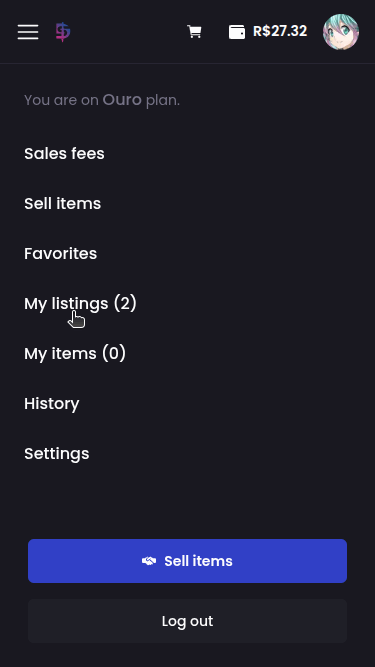
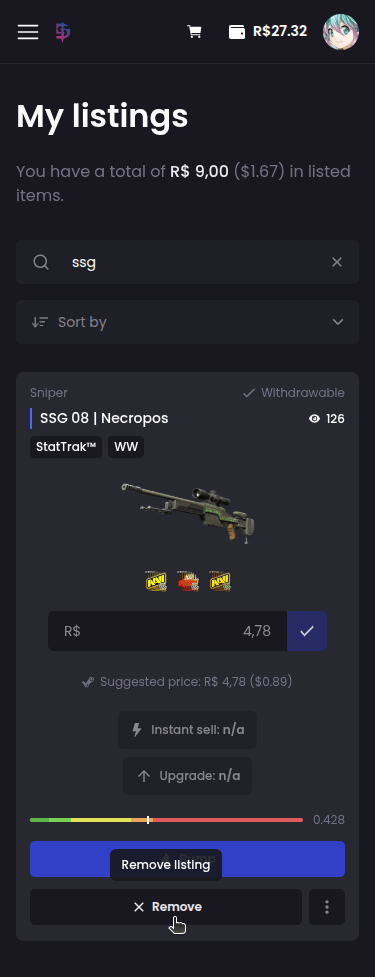
Then find the listing you want to cancel and click theRemove button:

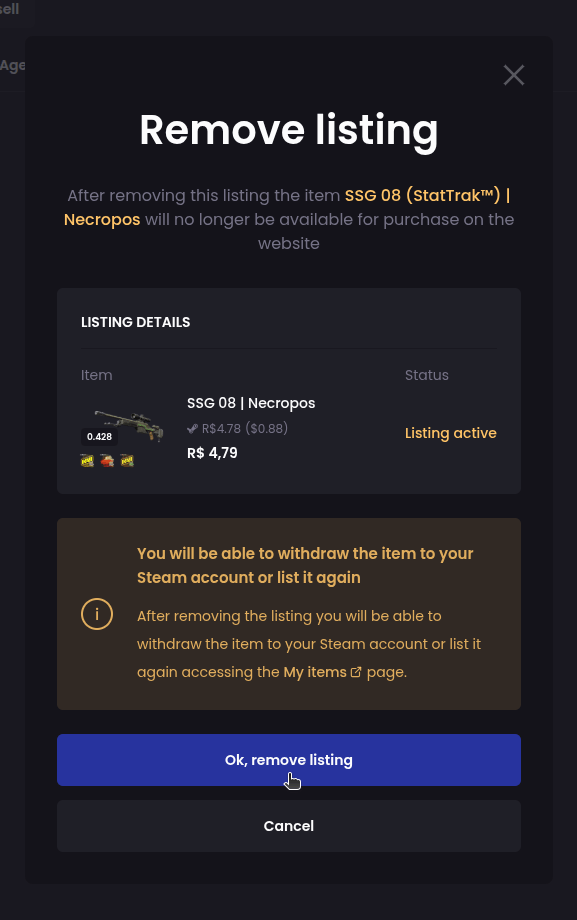
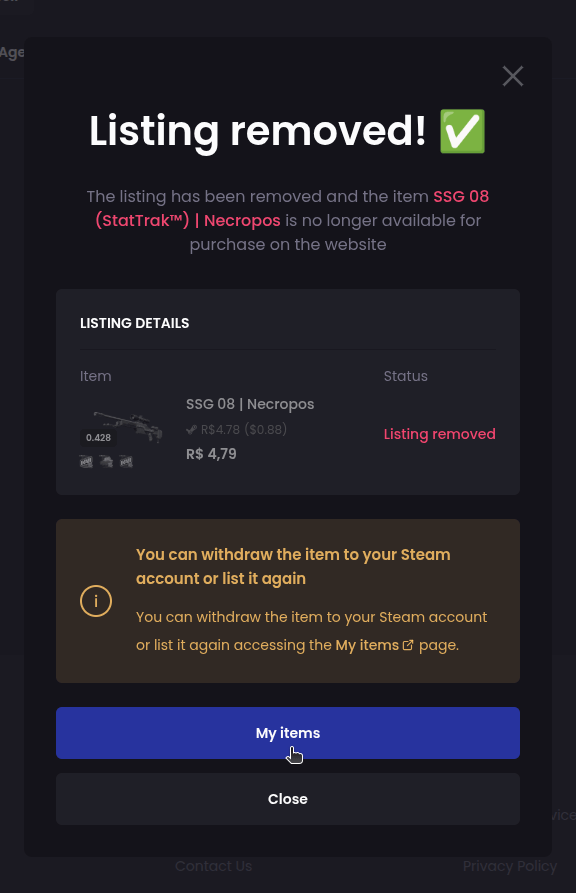
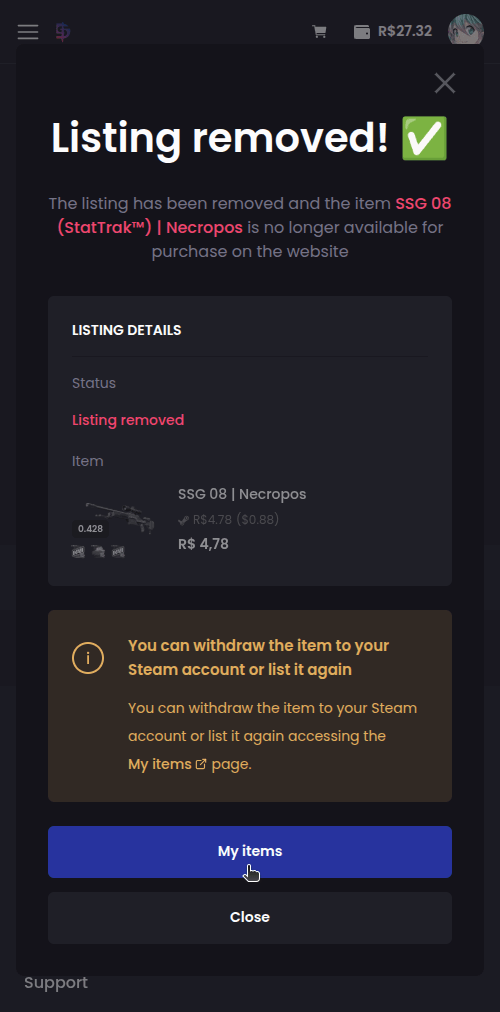
Confirm the listing removal:
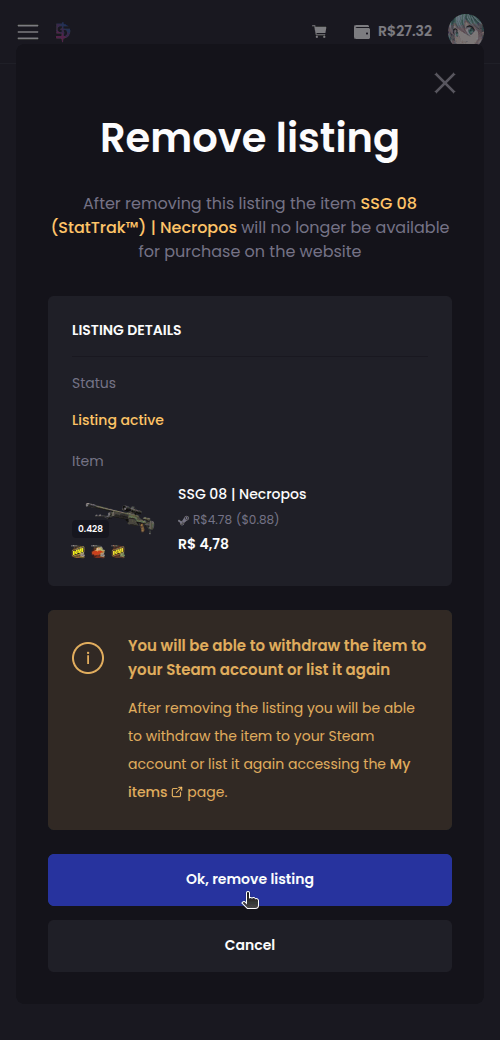
After confirming the removal, your skin will be available for withdraw in your inventory on the platform:
- Check game and item inventory;
- Create statistics websites;
- Automate trades in trading bots;
- Integrate games/applications with their Steam account.
- The scammer tricks the victim (from fake websites, for example) into entering their API key on a suspicious website.
- With this key, the scammer can intercept the victim's trades:
- When the victim accepts a legitimate trade, the scammer uses the API to cancel and recreate the trade in their name, but sending the items to the scammer's account.
- Since the transaction is made “in the user’s own name,” they often only realize the scam after they’ve already lost the items.
- Never enter your API key on unofficial websites.
- Always use the Steam Guard Mobile Authenticator for additional security.
- Protect your account in case someone discovers your password.
- Confirm login on new devices.
- Authorize trades and sales in the Steam Community faster and without long holds.
- Reduce security blocks (such as 15-day trade holds when there is no active authenticator).
Why do my Steam profile and inventory visibility need to be public to use DashSkins platform?
Your profile and inventory must be visible to the public so that your Steam inventory can be loaded correctly when listing/selling your skins.
How do I change the visibility of my Steam profile and inventory?
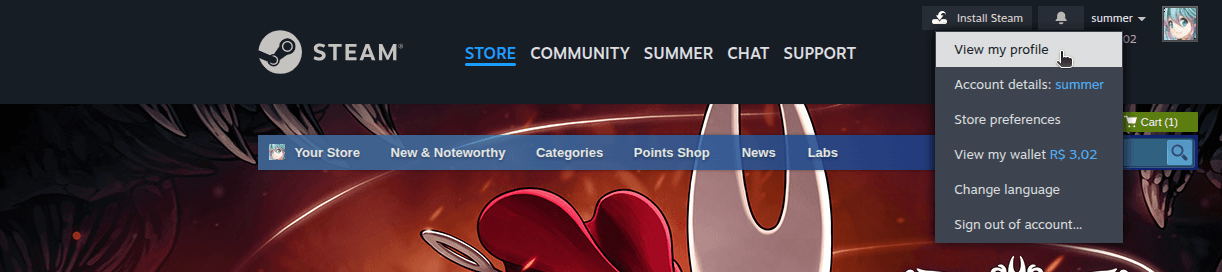
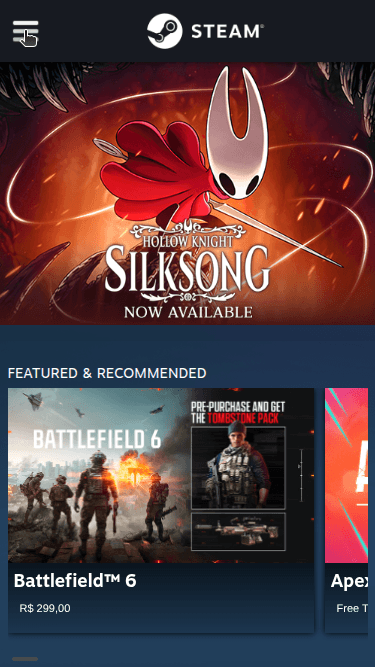
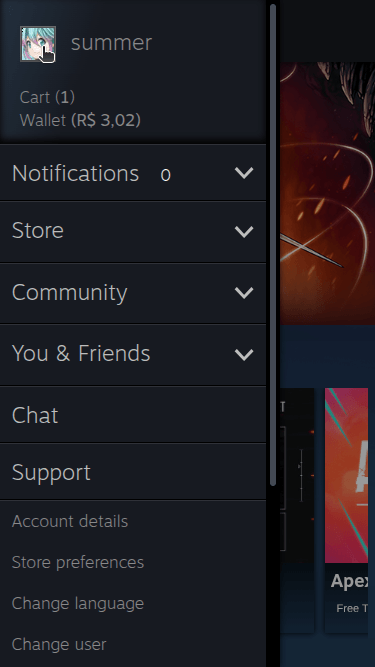
First log in to your Steam account and then go to the My profile page:
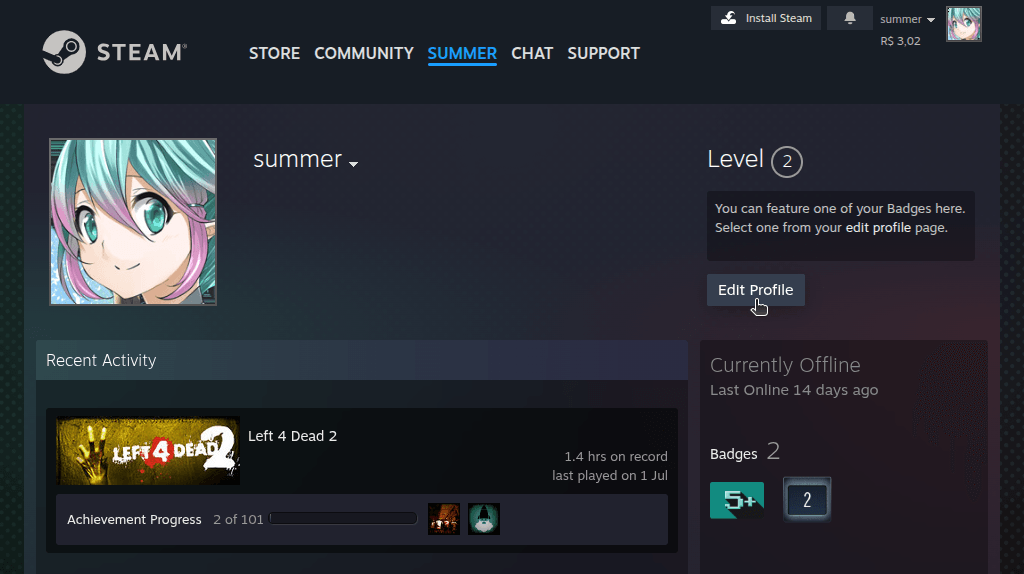
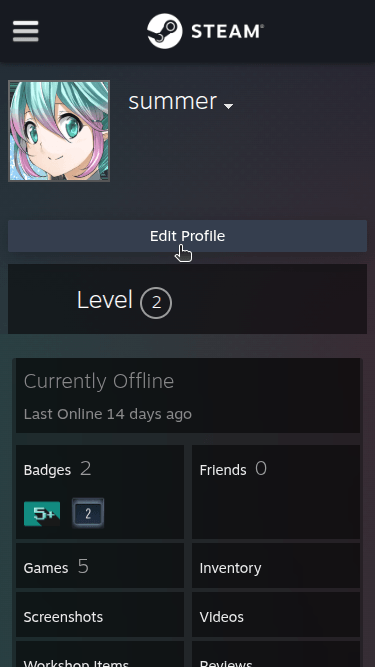
Then click the Edit profile option:
On the next screen, in the menu on the left, select the Privacy Settings option:
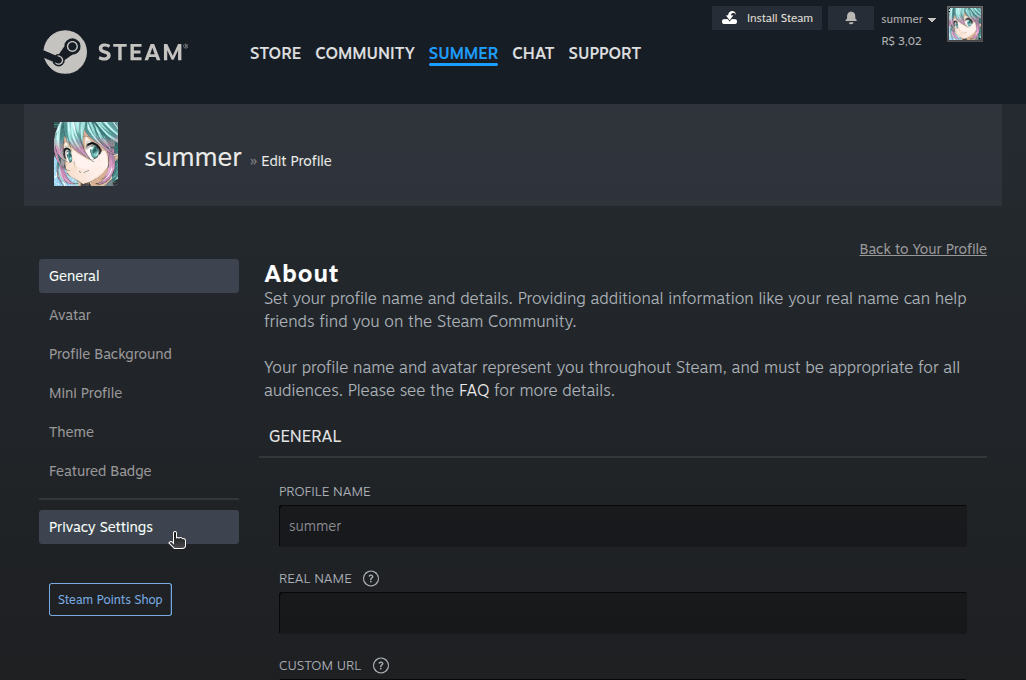
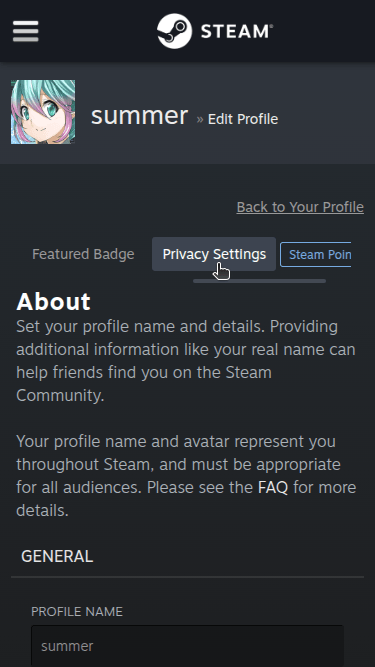
Finally, select the public visibility option for My profile and Inventory:
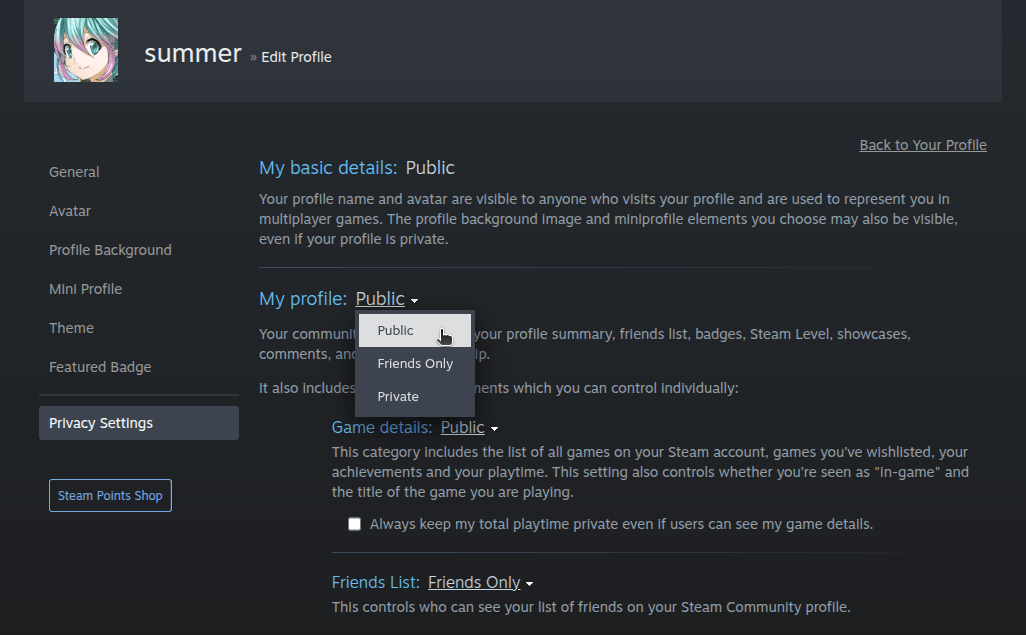
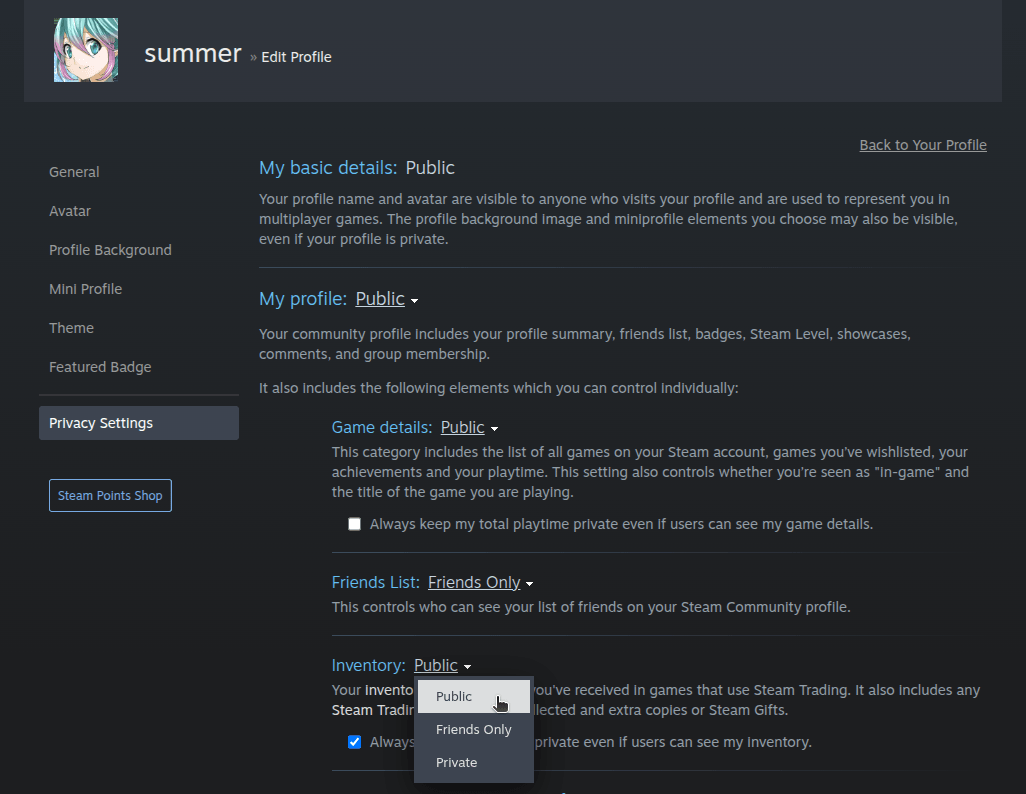
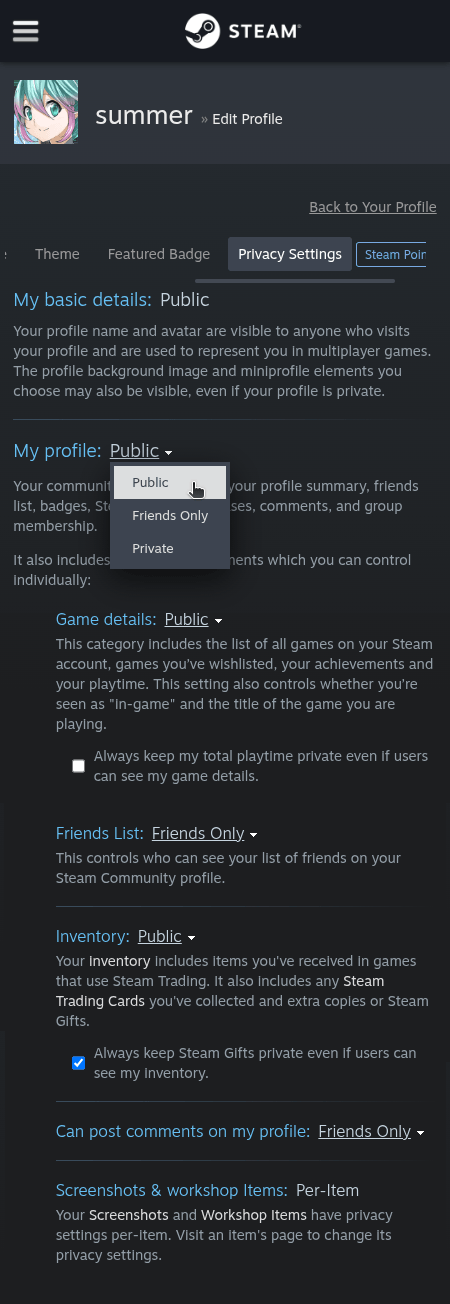
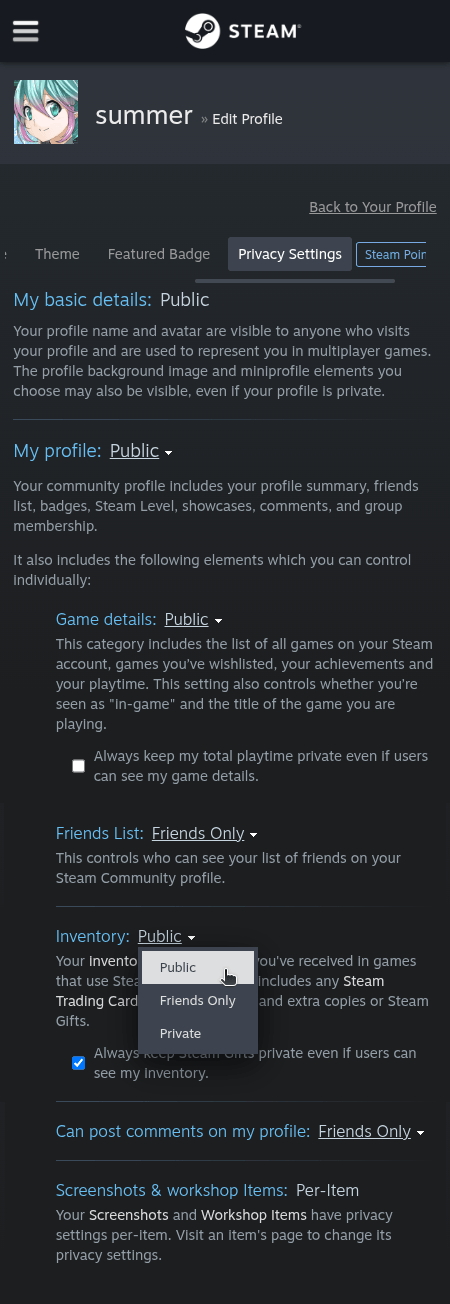
That's it! Your Steam profile and inventory are now publicly visible, and your items will be loaded and displayed when you try to list/sell your skins.
What is a trade URL and what is it for?
A Trade URL is a unique address that Steam generates for each account. It allows you to securely share your trade identity without having to add someone as a friend first.
How do I find my trade URL on Steam?
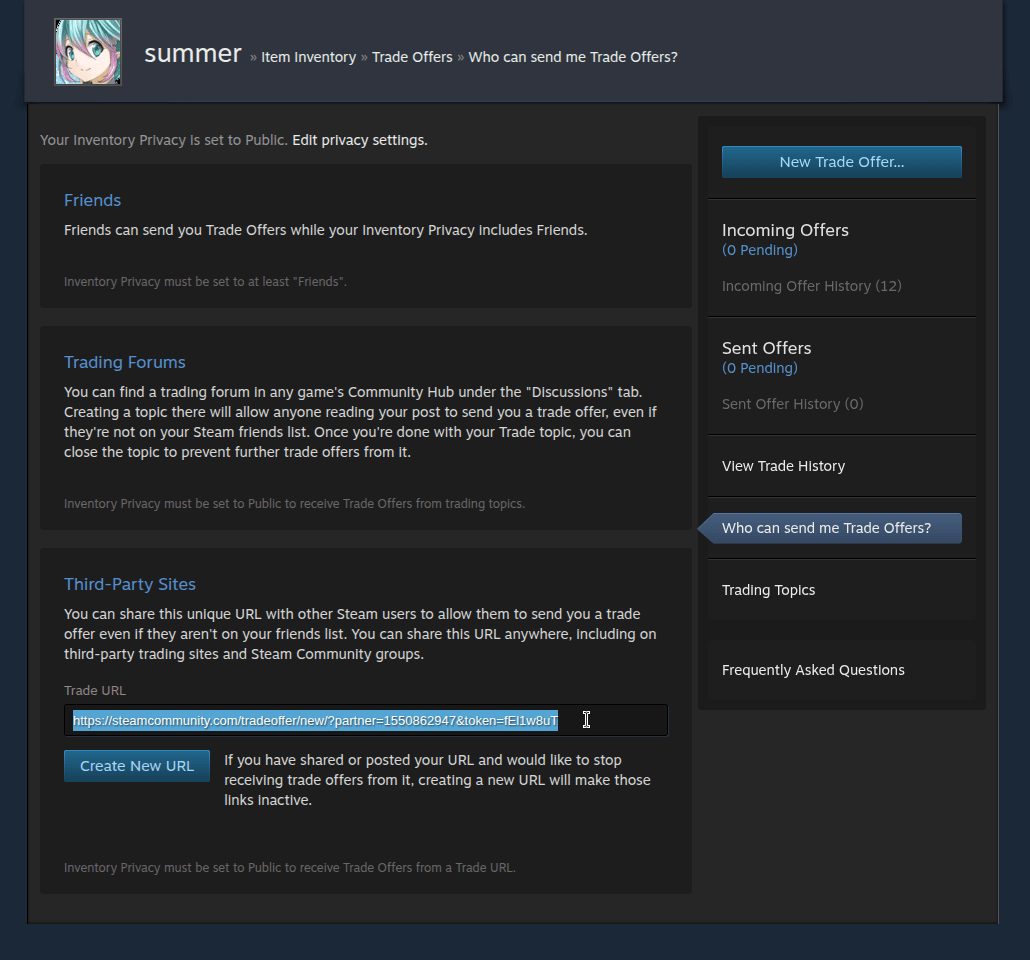
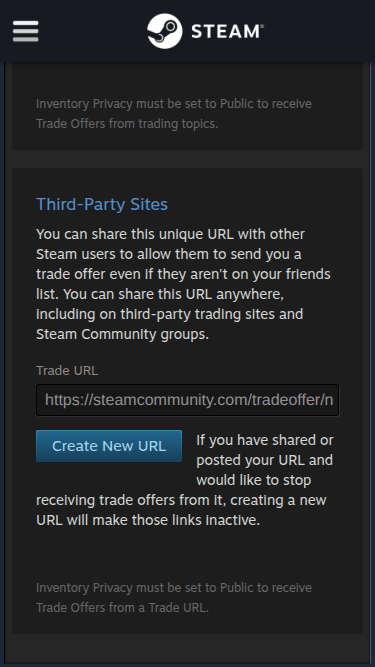
To find your trade URL, access this link: https://steamcommunity.com/my/tradeoffers/privacy#trade_offer_access_url.
Your trade URL will be displayed in the Third-Party Sites section:
What is the Steam API Key and how can I avoid API Scams?
What is a Steam API Key?
Steam offers an API (Application Programming Interface) that allows developers to create applications, websites, and bots that interact with the platform.
To use this API, users can generate a unique API key linked to their account. This key allows them to, for example:
What is API Scam
API Scam is a type of scam that exploits users' carelessness with their API keys. It works like this:
This is one of the most common scams with CS2 skins. We recommend using Steam's trade reversal system to recover items in case of fraud.
How to protect yourself:
What is Steam Guard and what is it for?
Steam Guard is an extra security feature from Steam that protects your account from unauthorized access.
It works like two-step verification (2FA): in addition to your password, you'll need to confirm your login with an additional code. This code can be sent viaemail or generated in the official Steam app (Steam Guard Mobile Authenticator).
Main functions of Steam Guard:
Why do I need Steam Guard active through the Steam APP to list or withdraw skins?
Here at DashSkins, all item trades, both for withdraw and listing, are handled through our automated BOTs.
Users who don't have Steam Guard active (which is necessarily through the app and not via email), not only don't have the maximum level of security provided by Steam, but also have their accounts restricted from certain trades, such as automated trades!
When sending the trade offer, our bots identify that the account has this restriction and are therefore unable to send the exchange.
No trade offers are sent manually by our team, under any circumstances. This limitation is for both the user's safety and that of our BOTs!
To enable Steam Guard, check out the tutorial below.
Don't worry, the items you purchased are yours! They will remain on the site until you can withdraw them.
How do I enable Steam Guard on my Steam account?
First, install the official Steam app on your phone via the App Store (iPhone) or Google Play (Android).
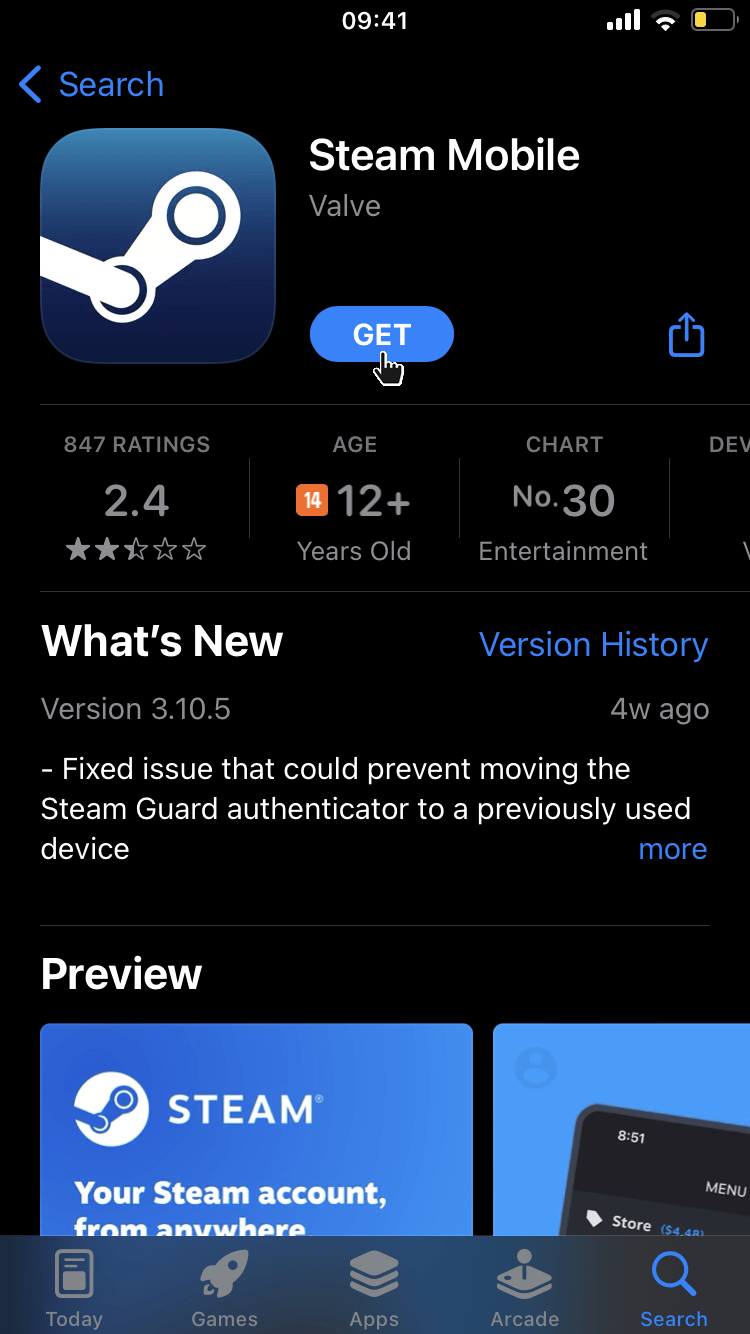
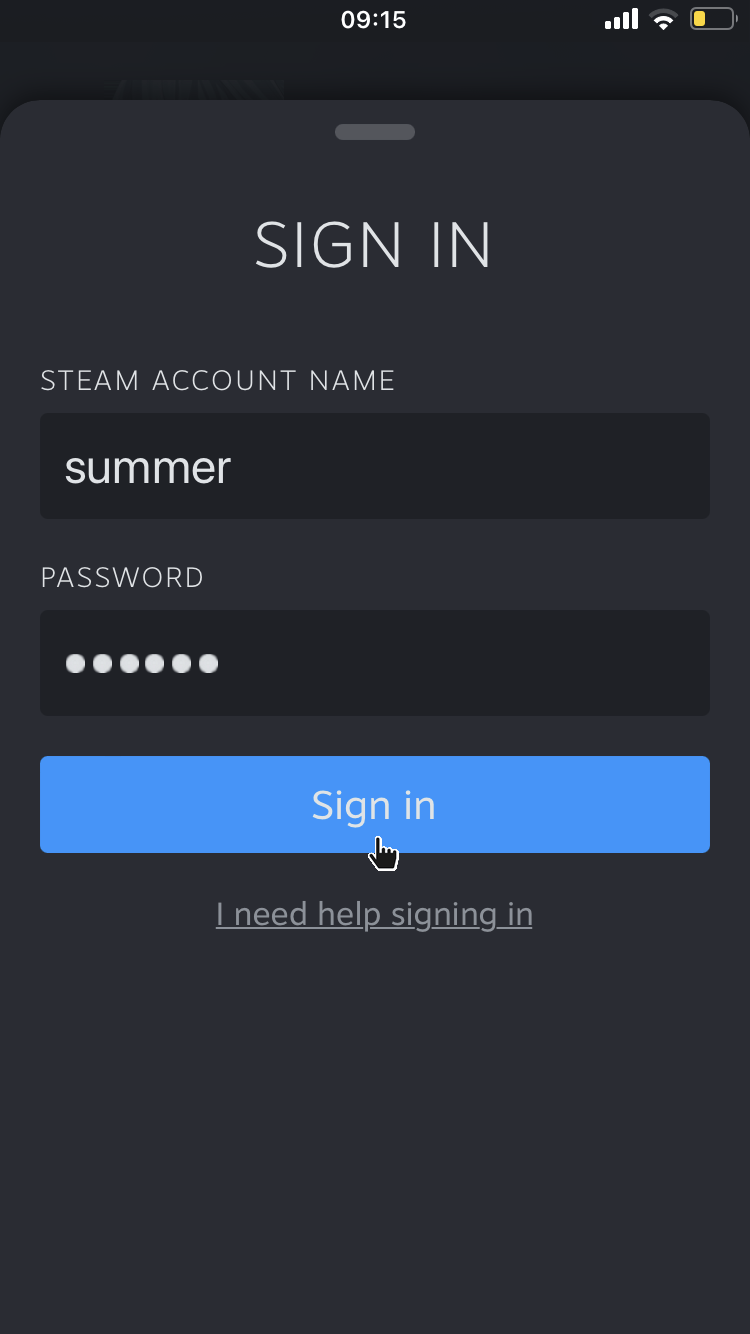
Then log into your account:
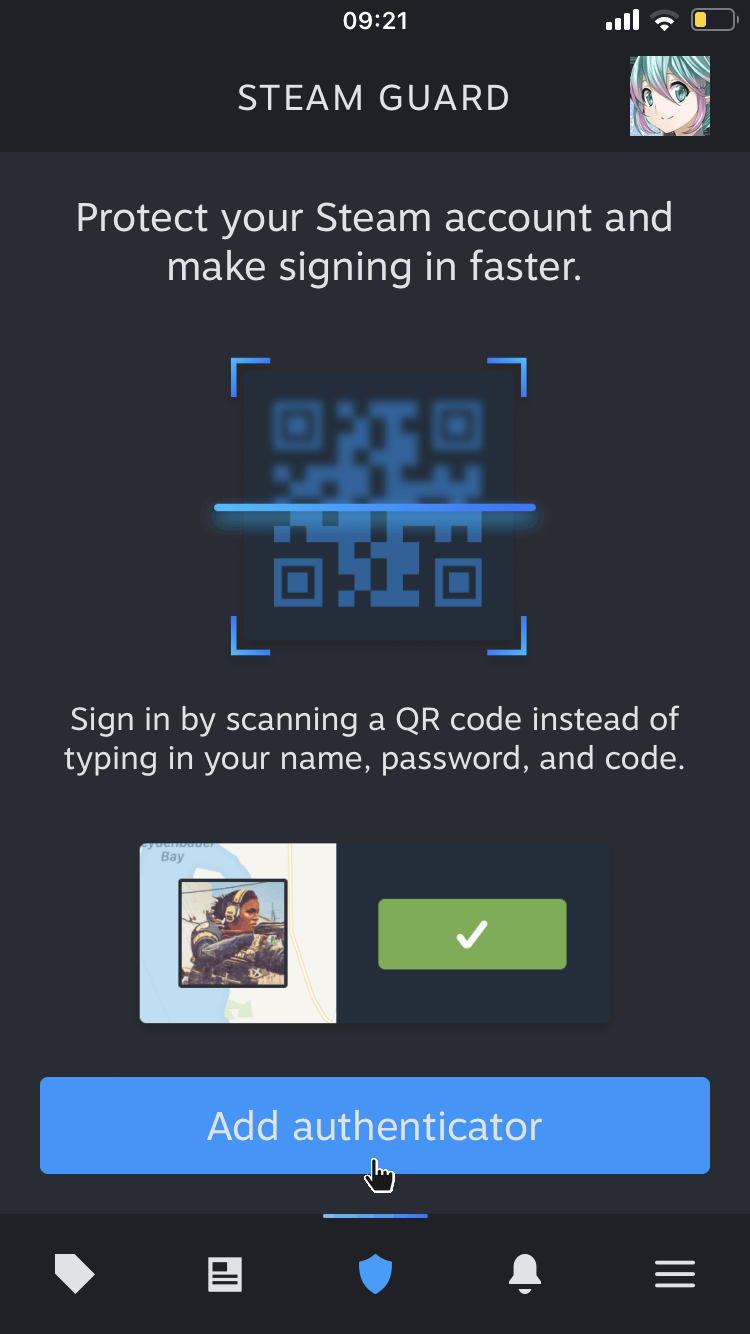
After logging into your account, click the button in the menu at the bottom of the application, then click Add authenticator:
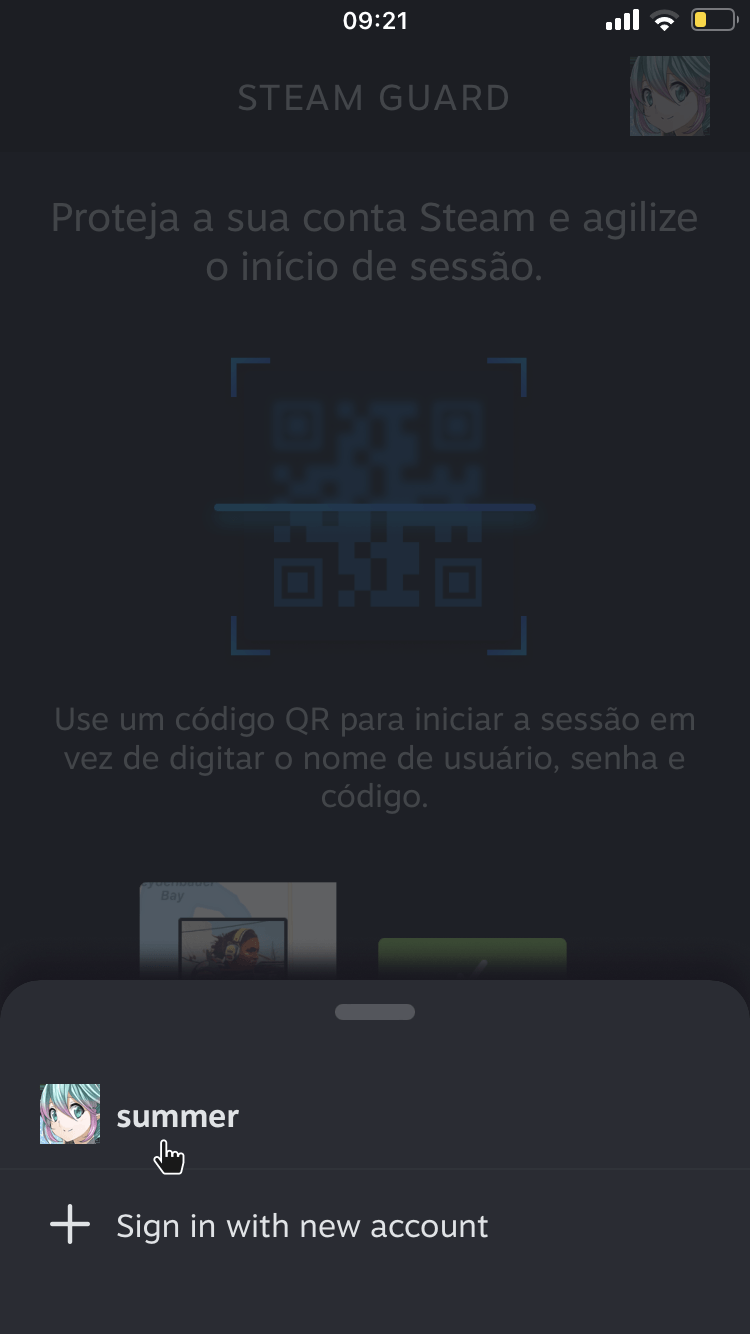
Select the Steam account you want to enable Steam Guard for:
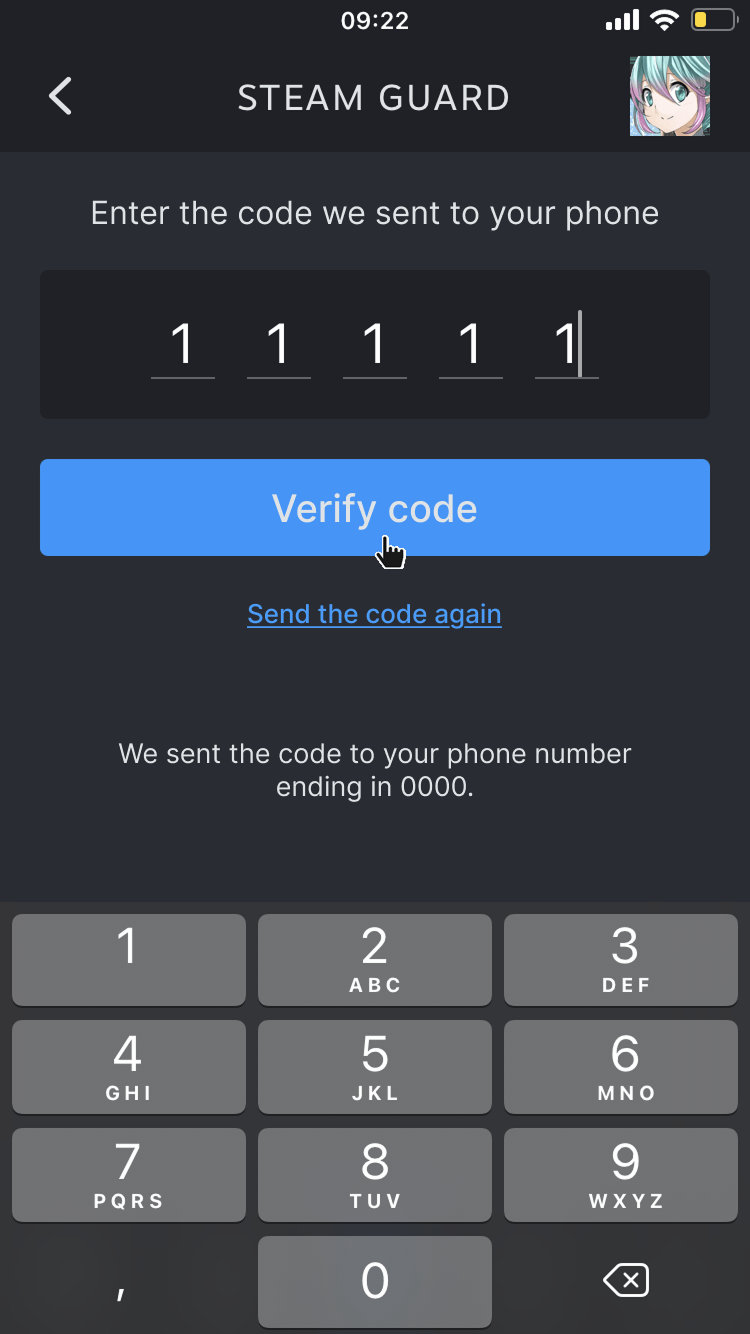
Then enter the verification code that Steam will send you and click Confirm Code:
Finally, write down and keep your account recovery code in a safe place. This code will help you recover your account if you lose access to your phone or delete the Steam app without first transferring the authenticator to another device.
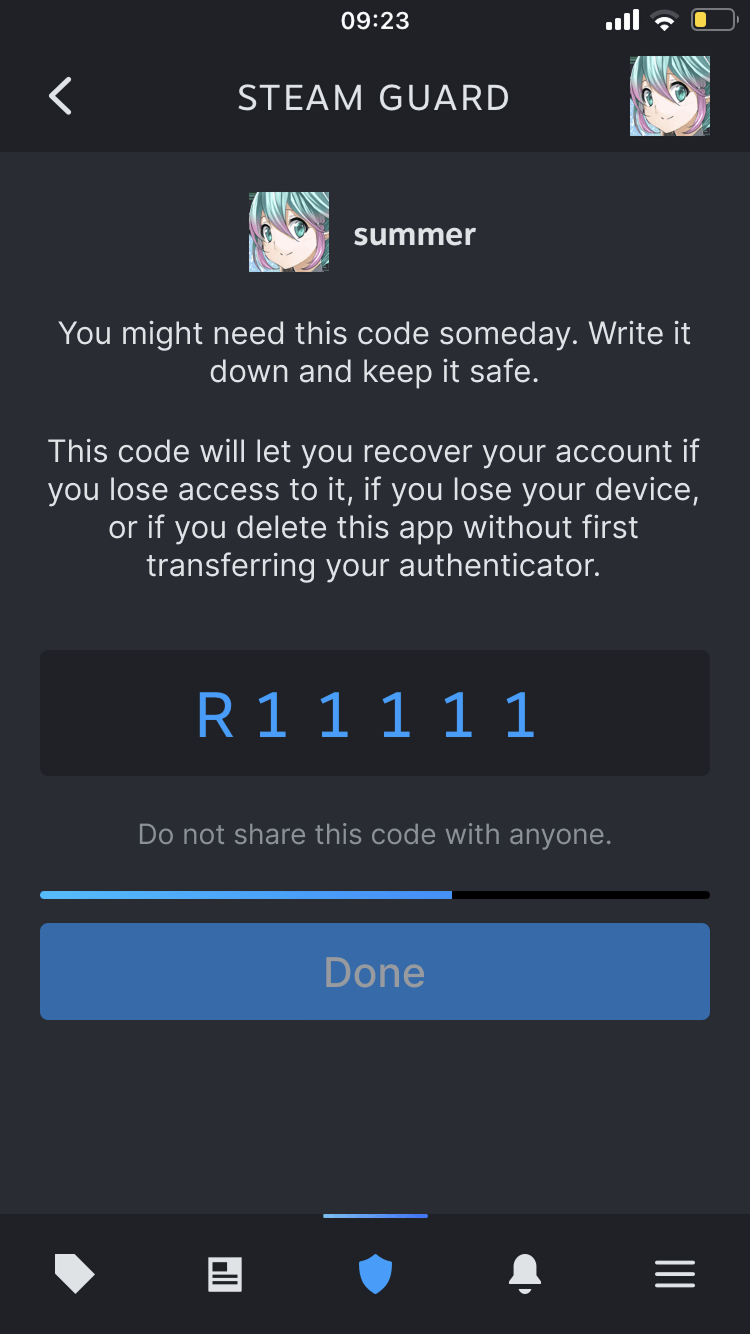
That's it! Steam Guard has been successfully enabled on your account.
I activated Steam Guard but I still can't list and/or withdraw my skins, what should I do?
After activating Steam Guard, your account will be subject to a trade restriction that can last from 7 to 15 days! After this period, you will be able to use our platform without any problems!
Using the links below, you can check whether yours has restrictions or not:
How can I contact DashSkins?
To contact us please send an email to [email protected].